Getting Alexa connected should be simple, but one missed setting can turn setup into a frustrating loop.
If your Echo will not join Wi-Fi, pair with your phone, or show up in the app, the fix usually starts with the basics. I find it helps to handle each connection in a clear order.
Learning how to connect Alexa means getting the device, app, Amazon account, and Wi-Fi working together first. This is really just the entry point into building a connected home, since most people add more voice-controlled devices once the first one works smoothly. You can also pair your phone for Bluetooth audio and link compatible TVs, lights, and plugs.
I also explain common connection problems, when a restart makes sense, and when a full reset should be your last option.
What Do You Need to Connect Alexa?
Before you touch the app, gather everything on this list. Having it ready up front means you won’t stop halfway through setup.
| What You Need | Why You Need It |
|---|---|
| Amazon Echo or another Alexa-enabled device | The physical speaker or display you’re setting up |
| Amazon Alexa app | Downloaded on your phone or tablet, used to run the whole setup |
| Amazon account | The login that ties your Echo to your Amazon services |
| Smartphone or tablet | Runs the app and stays useful for ongoing device management |
| Working Wi-Fi network | Your Echo needs this to connect to Amazon’s servers |
| Wi-Fi password | Required during setup to join your home network |
| Bluetooth-enabled phone | Only needed if you plan to pair for audio later |
With these ready, you can move through setup without hunting for a password or restarting halfway.
How to Connect Alexa for The First Time
Setting up Alexa for the first time is straightforward when you complete each step in order, from powering on your Echo to successfully testing its internet connection.
Step 1: Plug in Your Alexa Device
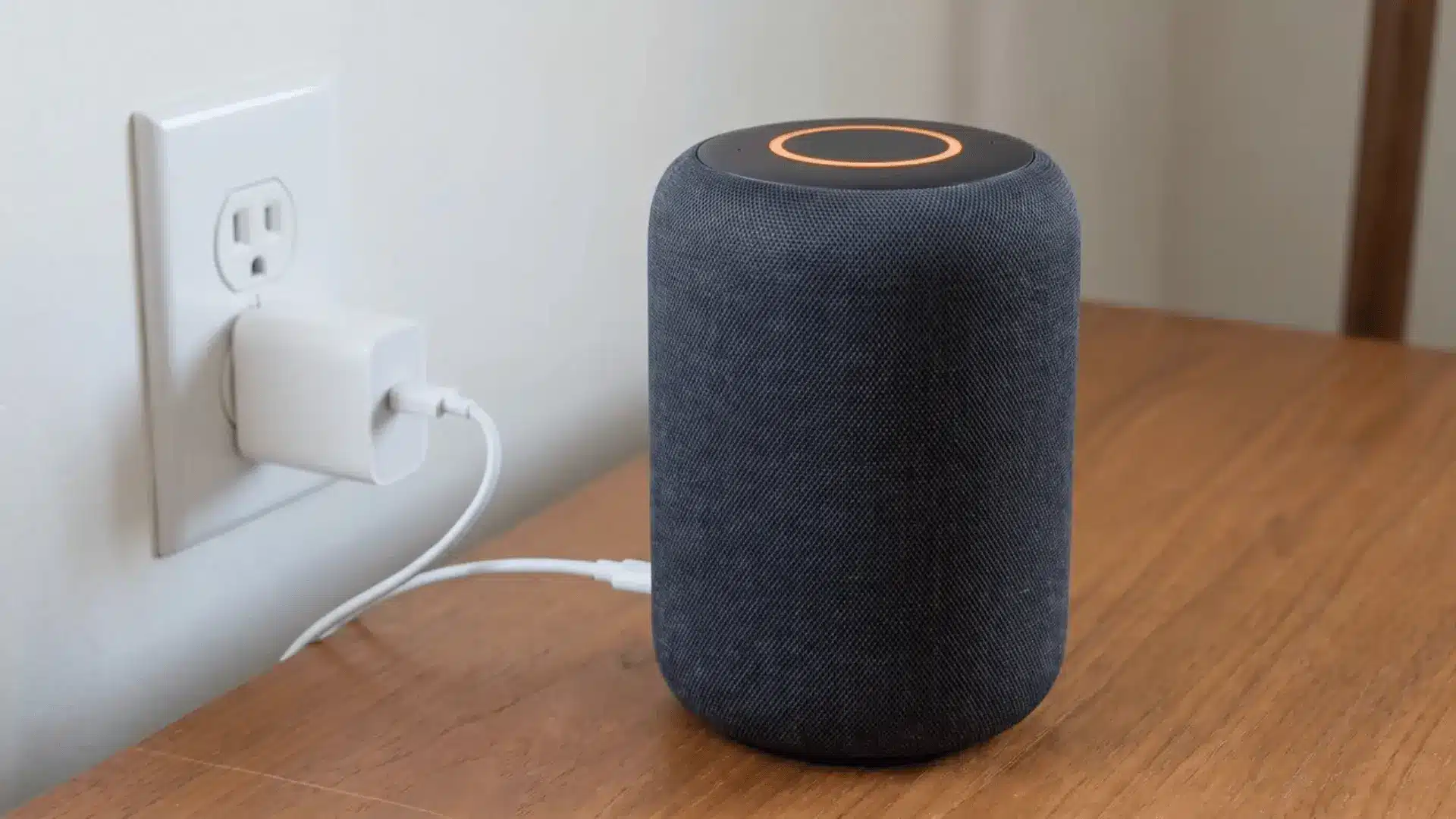
Connect your Echo to a wall outlet using the power adapter included in the box, rather than using an unrelated charger from another device.
Wait about a minute for the light ring to illuminate, then check that it settles into a solid orange color, indicating your Echo is ready for setup.
The orange light confirms that setup mode has started, while another color usually means the device needs additional time before you can continue.
Step 2: Install the Amazon Alexa App
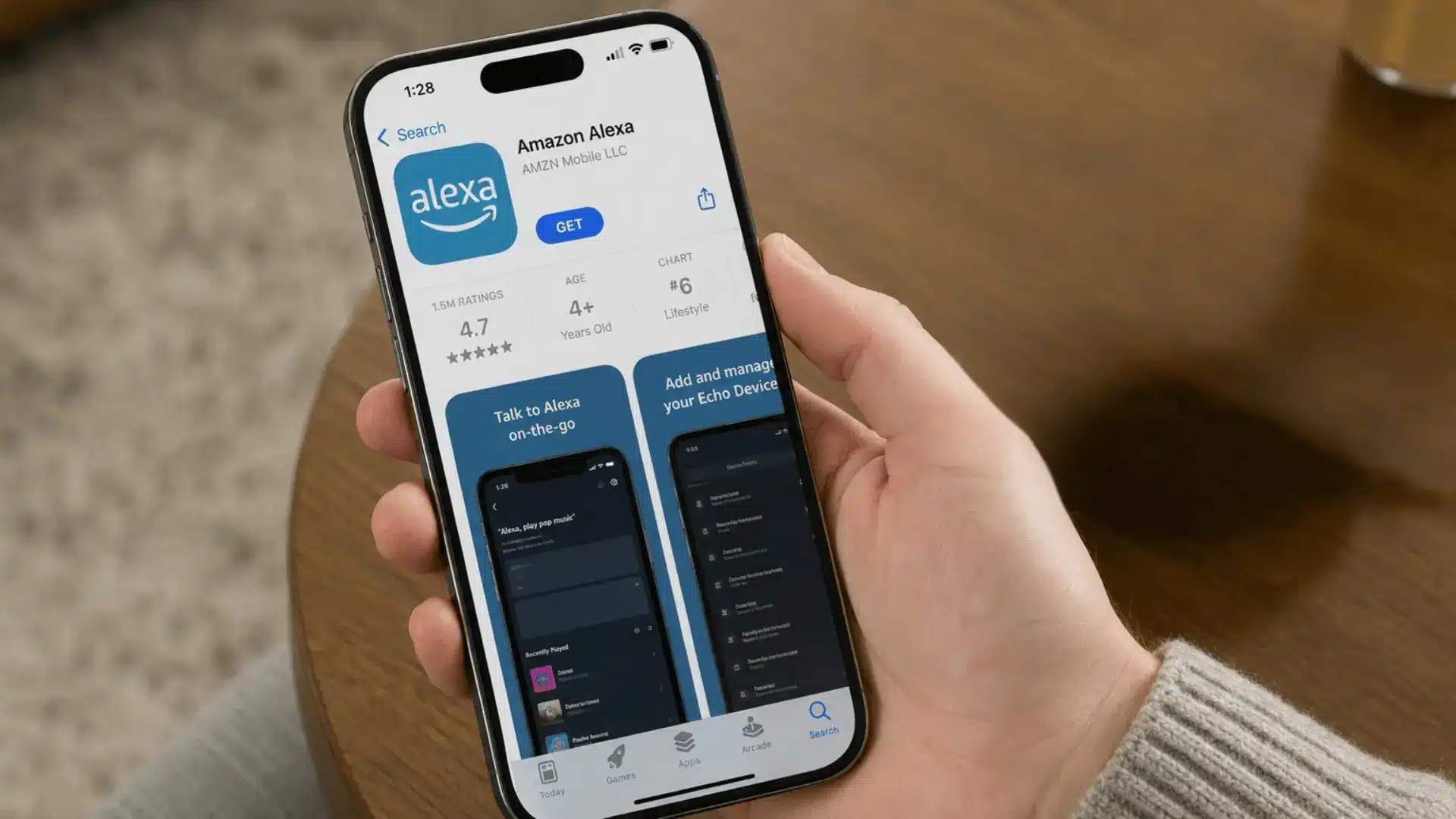
Open the App Store on your iPhone or Google Play on Android, search for the Amazon Alexa app, and download the official application.
After installation finishes, open the Alexa app and sign in using your Amazon account email address and password to continue with your Echo setup.
If you do not already have an Amazon account, create one before continuing because the Alexa app requires an account to add and manage devices.
Step 3: Add Your Echo Device
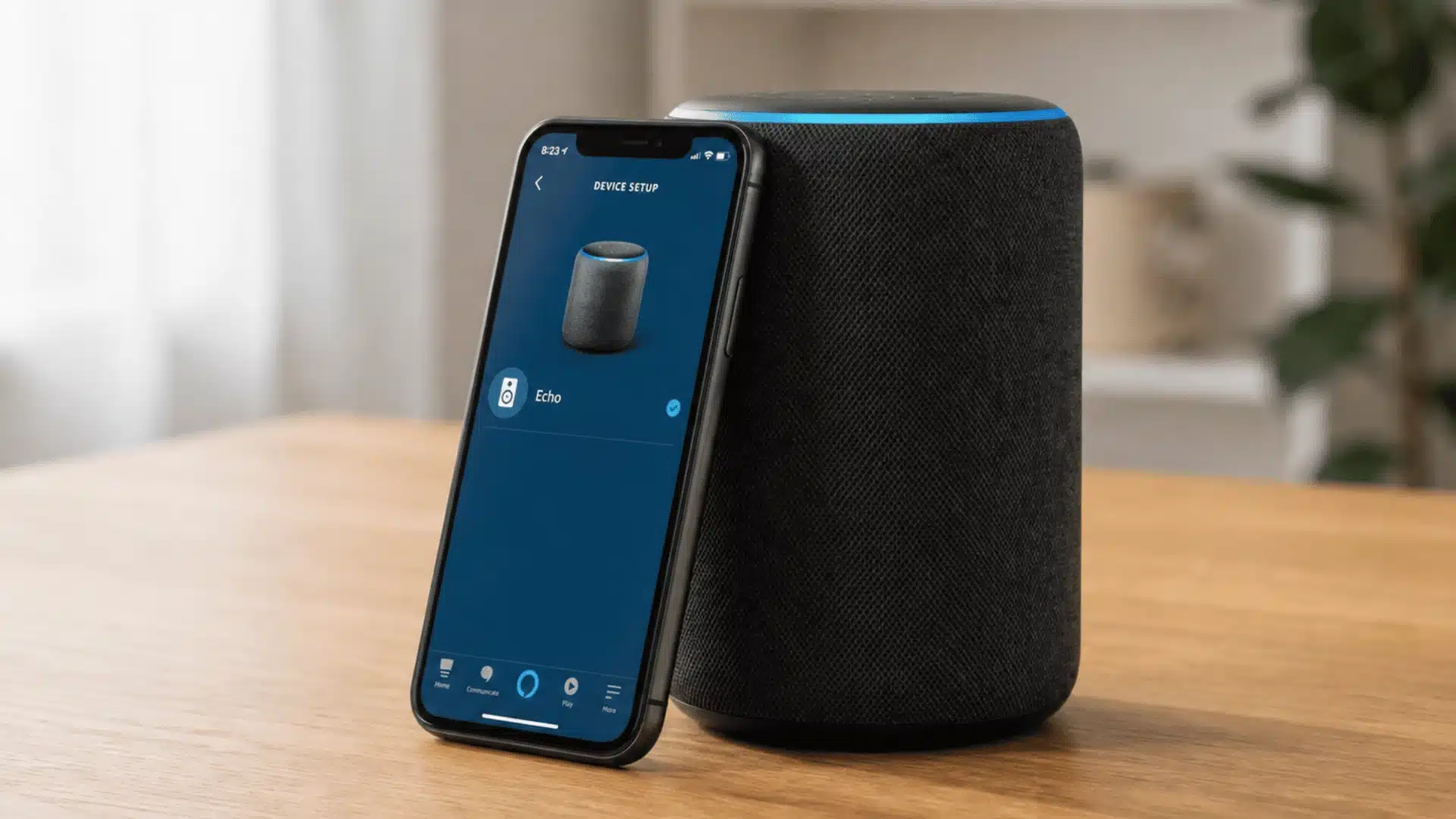
Tap Devices at the bottom of the Alexa app’s home screen, where your Echo and other connected smart devices will appear after setup.
Tap the plus icon, select Add Device from the menu, and wait for the available device categories to appear.
Choose Amazon Echo, then select your specific model (such as Echo Dot or Echo Show), because different models may have different setup instructions.
Step 4: Connect Alexa to Wi-Fi
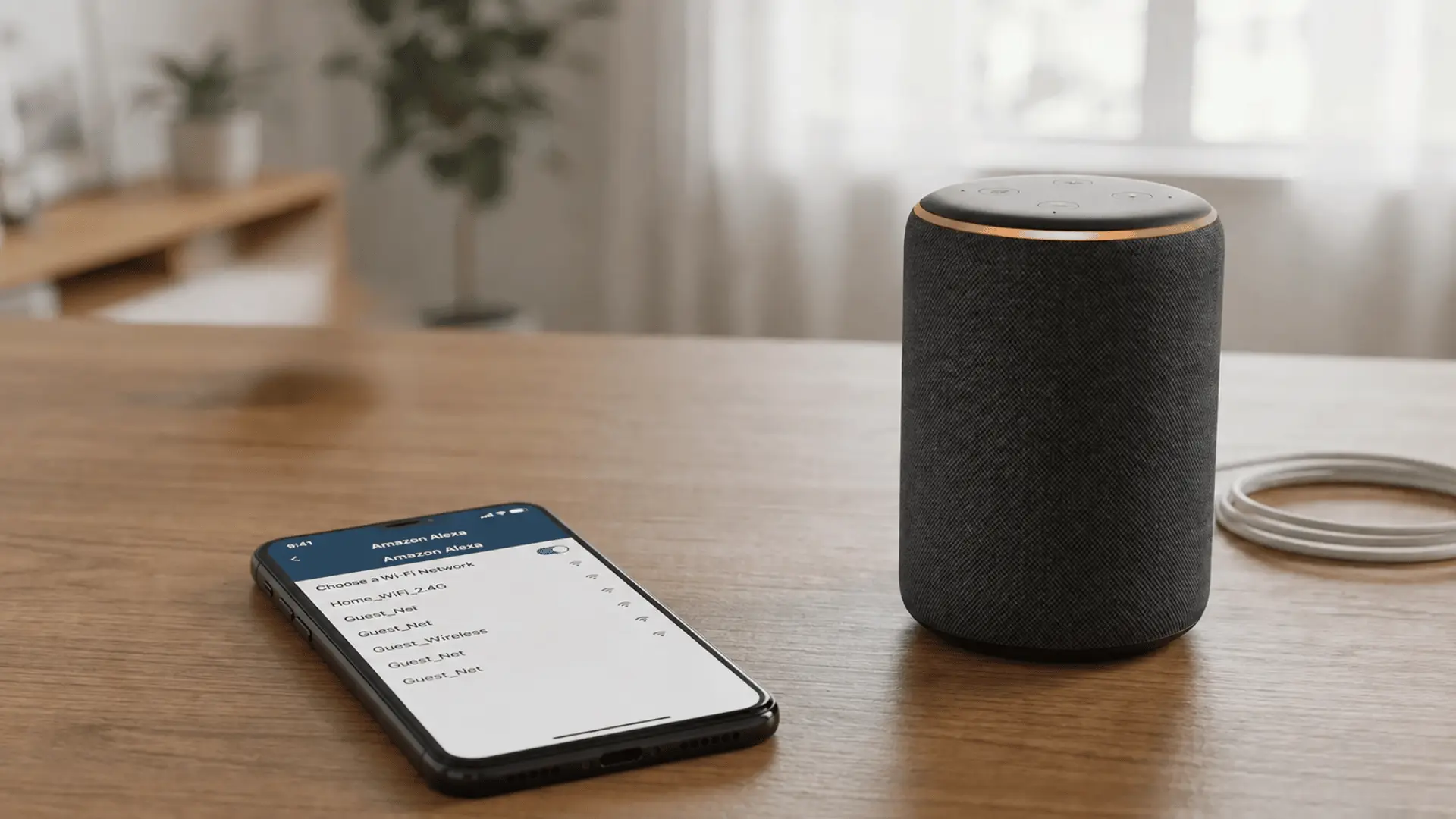
Select your home Wi-Fi network from the available networks displayed by the Alexa app after your Echo enters the connection stage during setup.
Enter your Wi-Fi password carefully, checking capital letters, numbers, and special characters before submitting it to prevent unnecessary connection problems during setup. Once one device is online, it’s often worth mapping out a broader automation plan so lighting, plugs, and speakers all sit on the same network from the start.
Complete any remaining prompts, such as naming your Echo or selecting a room, because these settings help organize your devices after the initial connection.
Step 5: Test the Connection
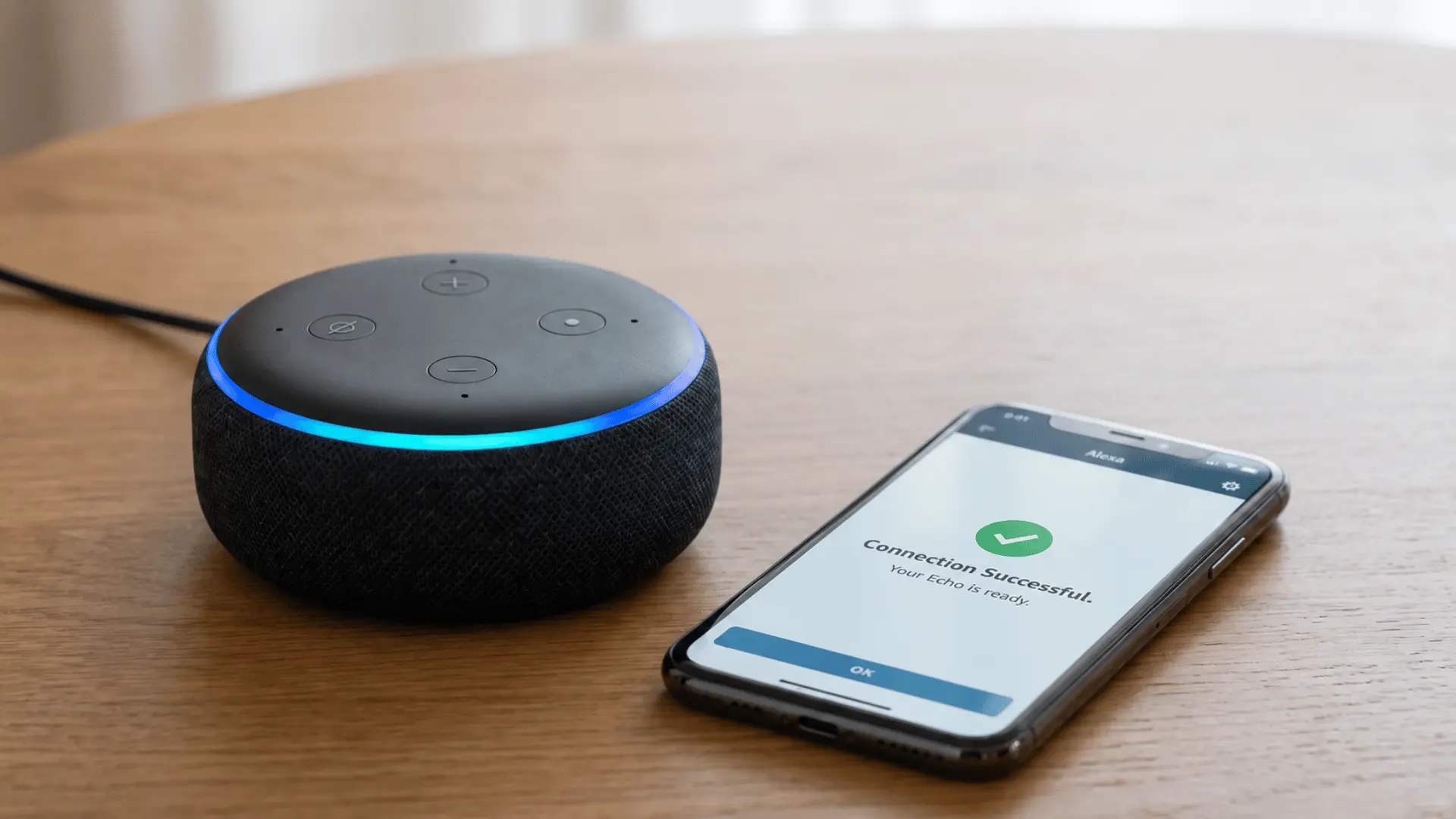
Wait for the Alexa app to display a confirmation message after your Echo successfully connects to Wi-Fi, which should normally happen within a minute.
Ask Alexa a simple question aloud, such as the current weather or time, to confirm that your Echo can access the internet and respond properly.
If Alexa answers successfully, your Echo is connected and ready to use; if it remains silent, repeat the connection step that caused the problem.
How to Connect Alexa to Wi-Fi
Wi-Fi is what keeps Alexa connected to online services. You may need to revisit these settings whenever you change networks, passwords, or locations.
- During initial setup, follow the Wi-Fi section in the Alexa app and select your home network from the list shown.
- Enter the correct password when prompted, then confirm the connection completes before moving on.
- To switch networks later, open the Alexa app, go to Devices, and select your Echo.
- Open its Wi-Fi settings, choose Change, select the new network, and enter its password.
- If Alexa won’t enter setup mode, check for the orange light ring that confirms it’s ready.
- Press and hold the action button for several seconds until the light changes color.
- If it still won’t turn orange, unplug the Echo, wait ten seconds, then reconnect and try again.
This same process covers a new router, a changed password, or moving your Echo to a different home entirely.
How to Connect Alexa to Your Phone
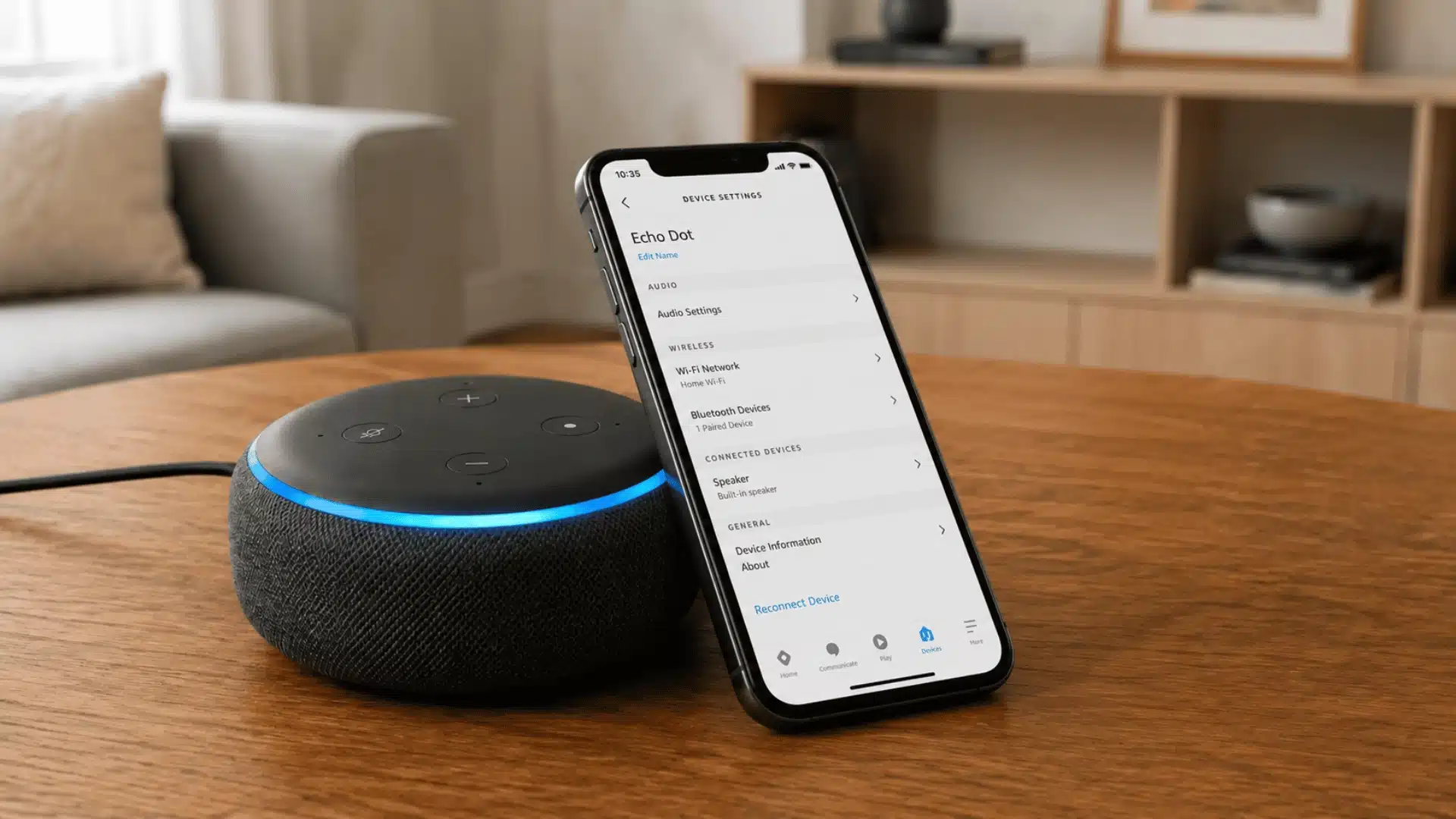
“Connect my phone to Alexa” can mean two different things. One is running the app, the other is pairing over Bluetooth.
Connect Your Phone Using the Alexa App
This connection is about control, not audio. Your phone runs the app that manages the Echo itself.
- Install the Alexa app on your phone and sign in with your Amazon account.
- Use the app to add your Echo, change Wi-Fi networks, or adjust the wake word.
- Manage notifications and other compatible settings from the same app.
- Remember this connection runs over Wi-Fi, not Bluetooth, since your phone controls the Echo remotely.
This setup stays active in the background, so you rarely think about it once the Echo is running.
Connect Your Phone to Alexa With Bluetooth
This is the connection people usually mean when they want to play music or take calls through the Echo speaker.
- Turn on Bluetooth in your phone’s settings before opening the Alexa app.
- Say “Alexa, pair” or open Bluetooth settings in the app to put the Echo into pairing mode.
- Open your phone’s Bluetooth list and select the Echo once it appears.
- Play a song or make a call to confirm the audio comes through the Echo speaker.
Once paired, your phone stays connected until you pair a different device or turn Bluetooth off.
How to Reconnect Alexa
Reconnecting an Echo is different from setting one up from scratch, and you can often resolve connection problems with a few simple troubleshooting steps.
Start by restarting your Echo: unplug it, wait about ten seconds, then plug it back in and allow a minute to boot.
If your Wi-Fi connection dropped, open the Alexa app, access your Echo’s settings, and reselect your network without repeating the entire setup process.
For Bluetooth problems, say “Alexa, pair” near your Echo to enter pairing mode, then reconnect the device through your phone’s Bluetooth settings.
If none of these solutions work, open the Alexa app and check Devices for your Echo. If it appears offline or missing, investigate that issue first.
How to Connect Alexa to Other Smart Devices
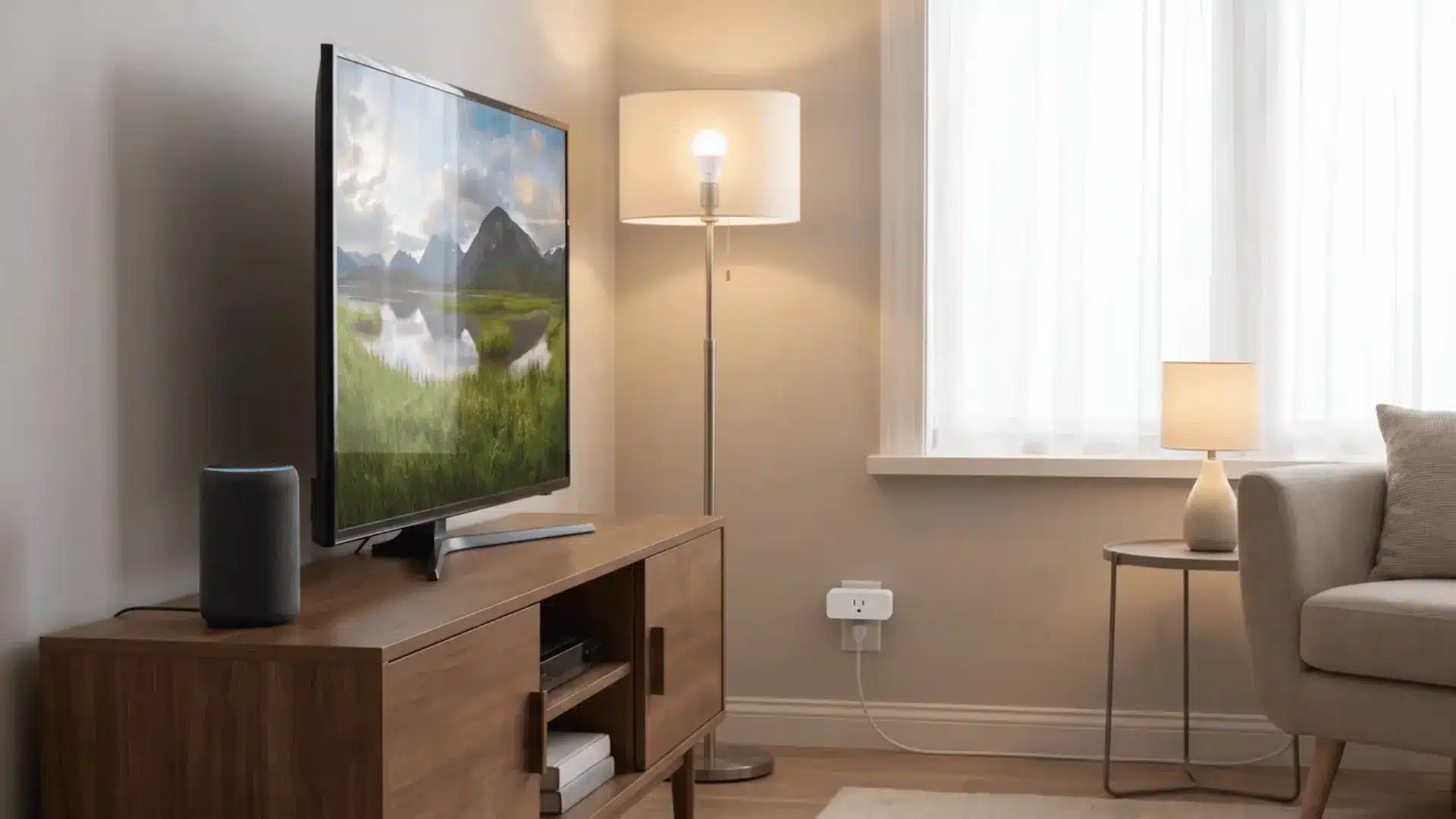
Once your Echo is online, it can control more than just itself. Here’s the short version for TVs, lights, and plugs.
Connect Alexa to a Smart TV
Connecting Alexa to a smart TV is usually simple when your television supports Alexa or works through a compatible streaming device.
- Confirm your TV is Alexa-compatible directly or connects through a supported streaming device.
- Enable the matching Alexa skill or link your TV account through the manufacturer’s companion app.
- Check that the TV appears under Devices in the Alexa app after successfully linking your account.
- Test a voice command, such as adjusting the power or volume, to confirm Alexa can control your television properly.
Once everything is connected, you can use supported Alexa voice commands to control your TV without reaching for the remote.
Connect Alexa to Smart Lights, Plugs, and Other Devices
Set up the smart device through its own app first, because most products require a separate account and a working connection before Alexa can detect them.
Once the device works independently, open the Alexa app and enable or link the appropriate skill associated with the device’s manufacturer.
Let Alexa search for compatible devices on your network, as most supported lights, plugs, and gadgets appear automatically after you link the correct skill.
Why Won’t Alexa Connect?
Most connection problems come down to one of a handful of causes. Work through these before assuming something’s actually broken.
- Check Wi-Fi: Confirm the router is working and the Echo is within range of the signal.
- Check Password: Make sure the correct Wi-Fi password was entered, since one wrong character blocks the whole connection.
- Restart Devices: Restart the Echo, phone, and router if the connection keeps failing.
- Update the Alexa App: Make sure the latest compatible version is installed on your phone.
- Try Setup Mode: Put the Echo back into setup mode and reconnect it through the app.
- Check Bluetooth: Remove an old pairing on your phone before trying to pair it again.
Running through this list fixes the connection in almost every case. If it still fails, the Echo itself may need a reset.
When Should You Reset Alexa?
Resetting Alexa should be your last option, not your first troubleshooting step, because simpler solutions can often restore the connection without removing settings.
When resetting may help: A reset makes sense when your Echo refuses to connect despite restarting the device and reconnecting to Wi-Fi correctly.
Restarting versus factory resetting: A restart simply powers your Echo off and back on, while keeping your existing settings, connections, and preferences intact.
A factory reset removes everything, including Wi-Fi details, linked accounts, and personal preferences, so you’ll need to complete the entire setup process again.
Reset steps vary by model: The exact button combination depends on your Echo model, including Echo Dot, Echo Show, and older devices, so check first.
Conclusion
Connecting Alexa is much easier when you handle each part of the setup in the right order.
You need the Alexa app, an Amazon account, a working Wi-Fi network, and the correct device settings before adding extras.
Once the basics are working, you can connect your phone through Bluetooth and link supported TVs, lights, plugs, and other devices.
If a connection fails, I recommend checking Wi-Fi, passwords, setup mode, and simple restarts before considering a factory reset.
Knowing how to connect Alexa also makes future network changes and reconnections less stressful during everyday use at home. Try the steps that match your setup, and share which connection fix worked best for you.
Frequently Asked Questions
Can I connect Alexa without the Alexa app?
No, first-time Echo setup generally requires the Alexa app to select your Wi-Fi network, connect the device, and complete registration with your Amazon account.
Does Alexa need Wi-Fi to work?
Yes, Alexa requires Wi-Fi for most features, including voice commands, music streaming, weather updates, smart home controls, and other internet-connected services.
Can Alexa connect to more than one phone?
Alexa can pair with multiple phones, but only one Bluetooth phone can remain actively connected at a time. Pairing another phone disconnects the previous device.
Can I use Alexa as a Bluetooth speaker without Wi-Fi?
Yes, Bluetooth audio can work without Wi-Fi after pairing your phone with an Echo, but Alexa voice commands and online features still require internet access.
Why is my Alexa showing an orange light?
An orange light on an Echo usually indicates setup mode, pairing mode, or a connection issue, such as difficulty connecting to your Wi-Fi network.