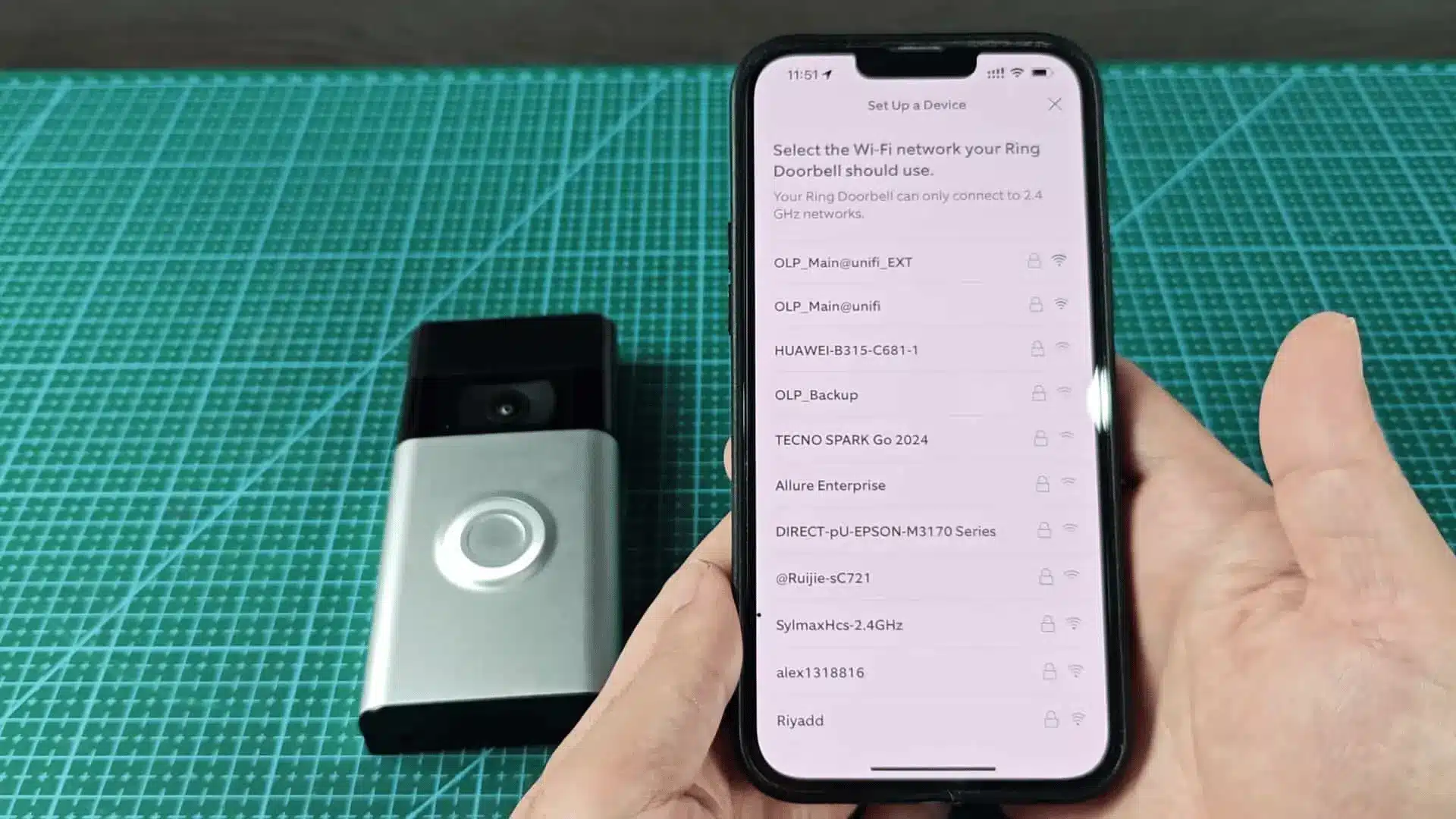
Changing your router, internet provider, network name, or WiFi password can leave a Ring Doorbell offline. Once that happens, Live View, motion alerts, and doorbell notifications may stop working until the device connects to the new network.
Knowing how to change WiFi on Ring Doorbell makes the fix much easier when home network details change.
I prefer getting the WiFi password, phone, and physical doorbell ready before starting because some models require access to the setup button.
If you’re connecting your devices for the first time, it’s worth setting up smart devices before you begin, since a clean initial setup avoids most reconnection headaches later.
The Ring app handles most of the process, while the doorbell itself only needs attention when setup mode is required.
What to Do Before Changing Your Ring Doorbell WiFi
A little preparation can prevent setup from stopping halfway through. Keep the phone, router, and Ring Doorbell within a reliable signal range while making the change.
- WiFi Password: Keep the correct password ready and check uppercase letters, numbers, and special characters.
- Phone Connection: Connect the phone to the network intended for the Ring Doorbell.
- Ring Account: Sign in to the account that has permission to manage the device.
- Doorbell Access: Make sure you can reach the setup button or removable faceplate.
- Battery Level: Charge battery-powered models before starting if the power is low.
- Internet Connection: Confirm the new router already has a working internet connection.
Once these basics are ready, the network change is much less likely to be interrupted. If your doorbell is just one piece of a bigger connected setup, other devices on a home automation network can be affected by the same switch, so it helps to confirm nothing else drops offline when you make the change.
How to Change Wi-Fi on Ring Doorbell
The Ring app handles the main network change. Menu names can vary slightly between models or app versions, but the process usually follows the same path.
Step 1: Connect Your Phone to the New WiFi
Connect the smartphone running the Ring app to the WiFi network that the doorbell should use.
Stay near the Ring Doorbell during setup. A reliable signal helps the phone communicate with the device while the new connection is being created.
Step 2: Open the Ring Doorbell Network Settings
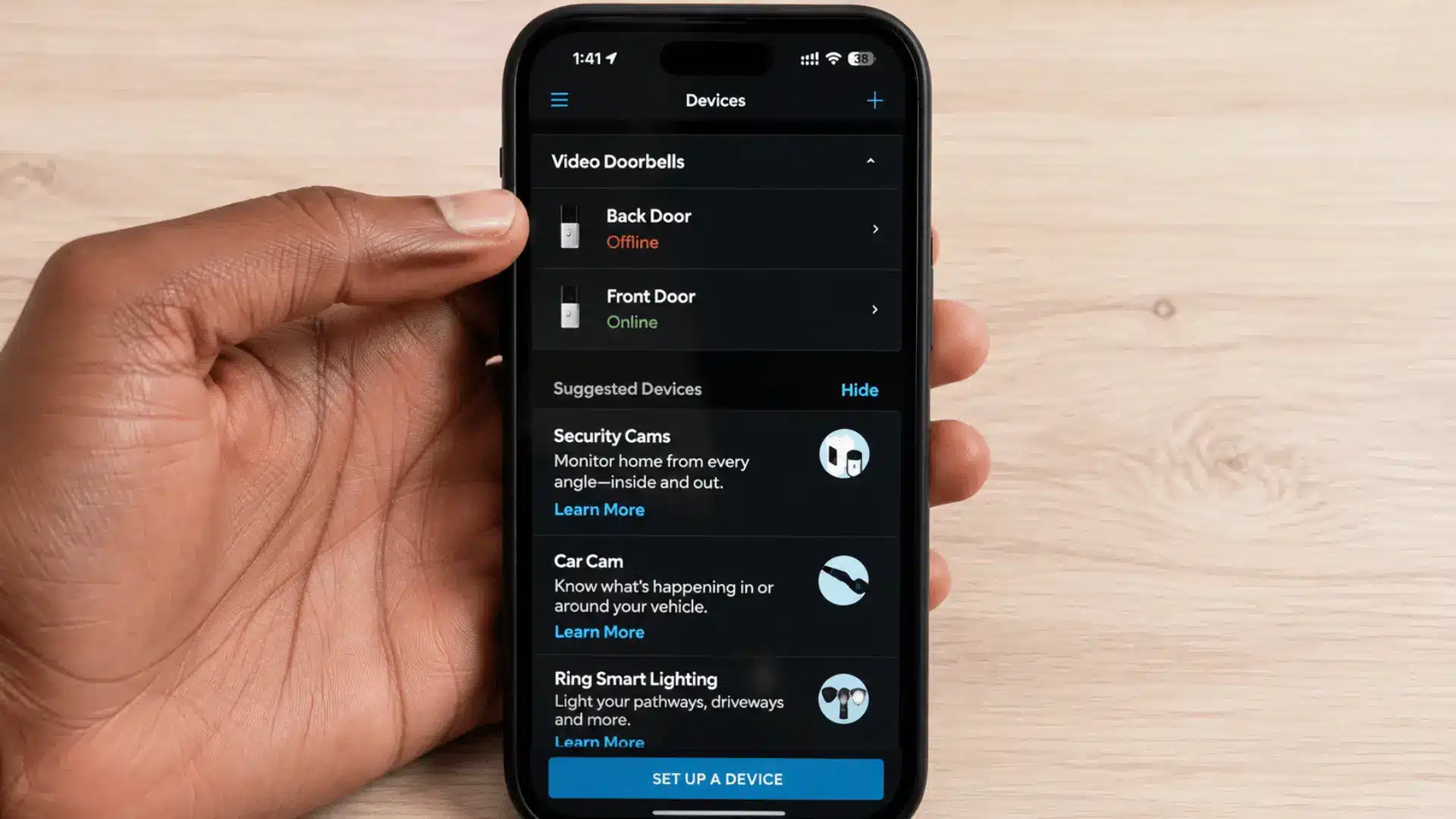
Open the Ring app and select the Ring Doorbell that needs a new network.
Go to Device Health to access the main Ring WiFi settings. Look for one of these options:
- Change Wi-Fi Network
- Change Network
- Reconnect to Wi-Fi
Tap the available option and follow the prompts shown on the screen.
Step 3: Put the Doorbell Into Setup Mode
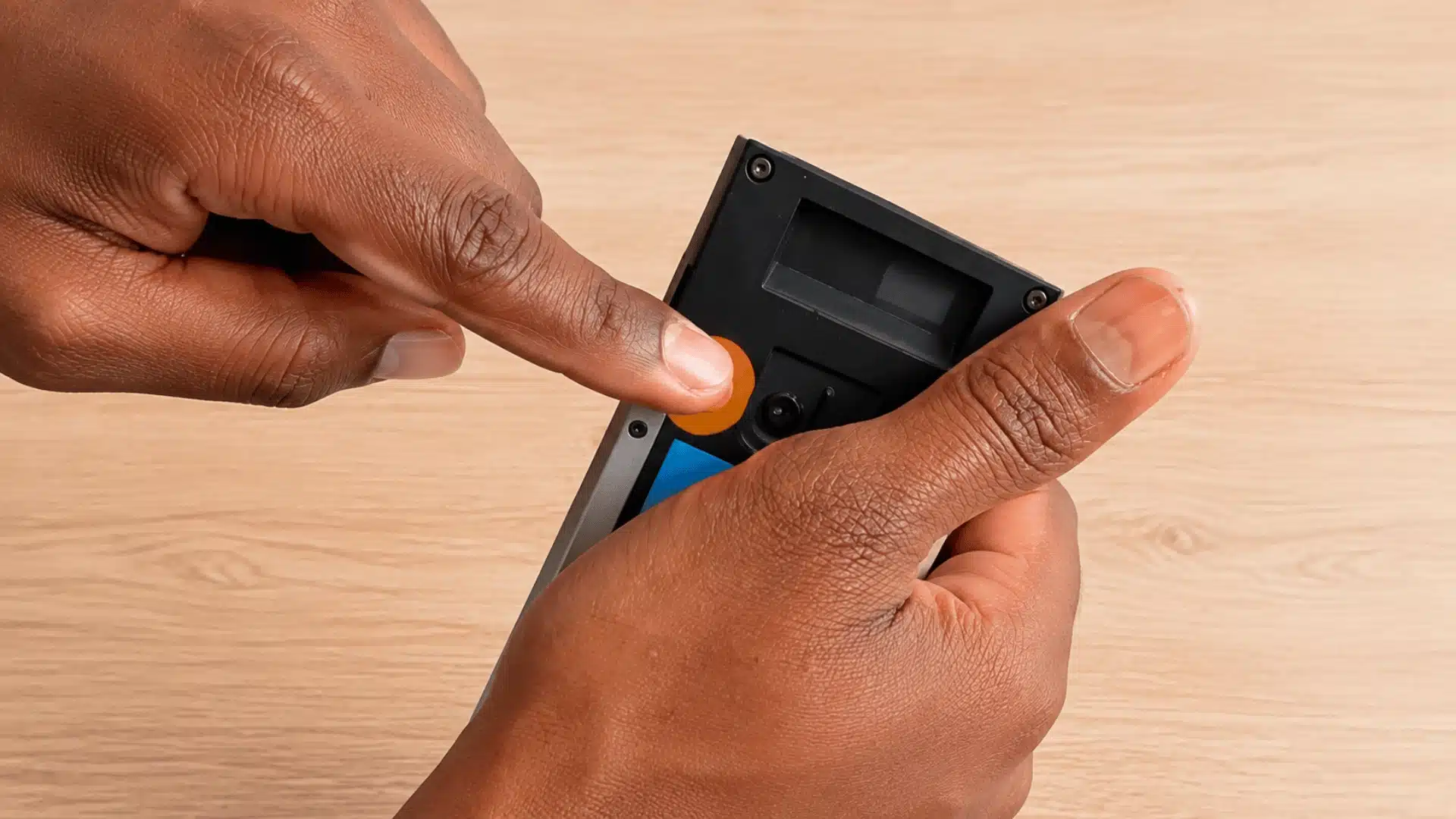
The Ring app may ask for physical access to the doorbell.
Press the setup button when prompted. On some older models, this may be an orange button. The location varies by model and may be behind the faceplate.
Wait for the doorbell light to spin or flash as directed by the app. That light pattern indicates the device is ready for network setup.
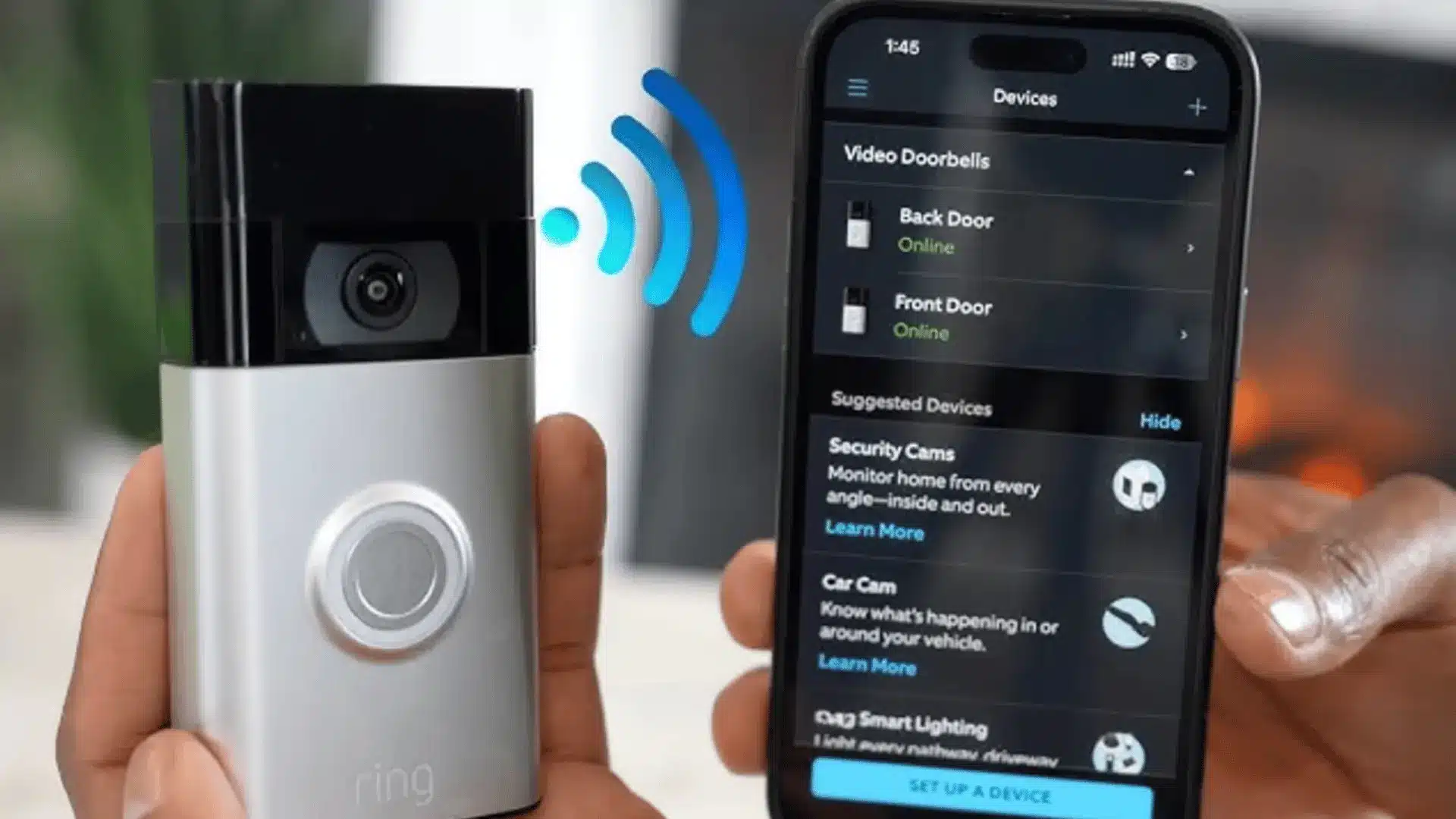
Step 4: Choose the New WiFi Network
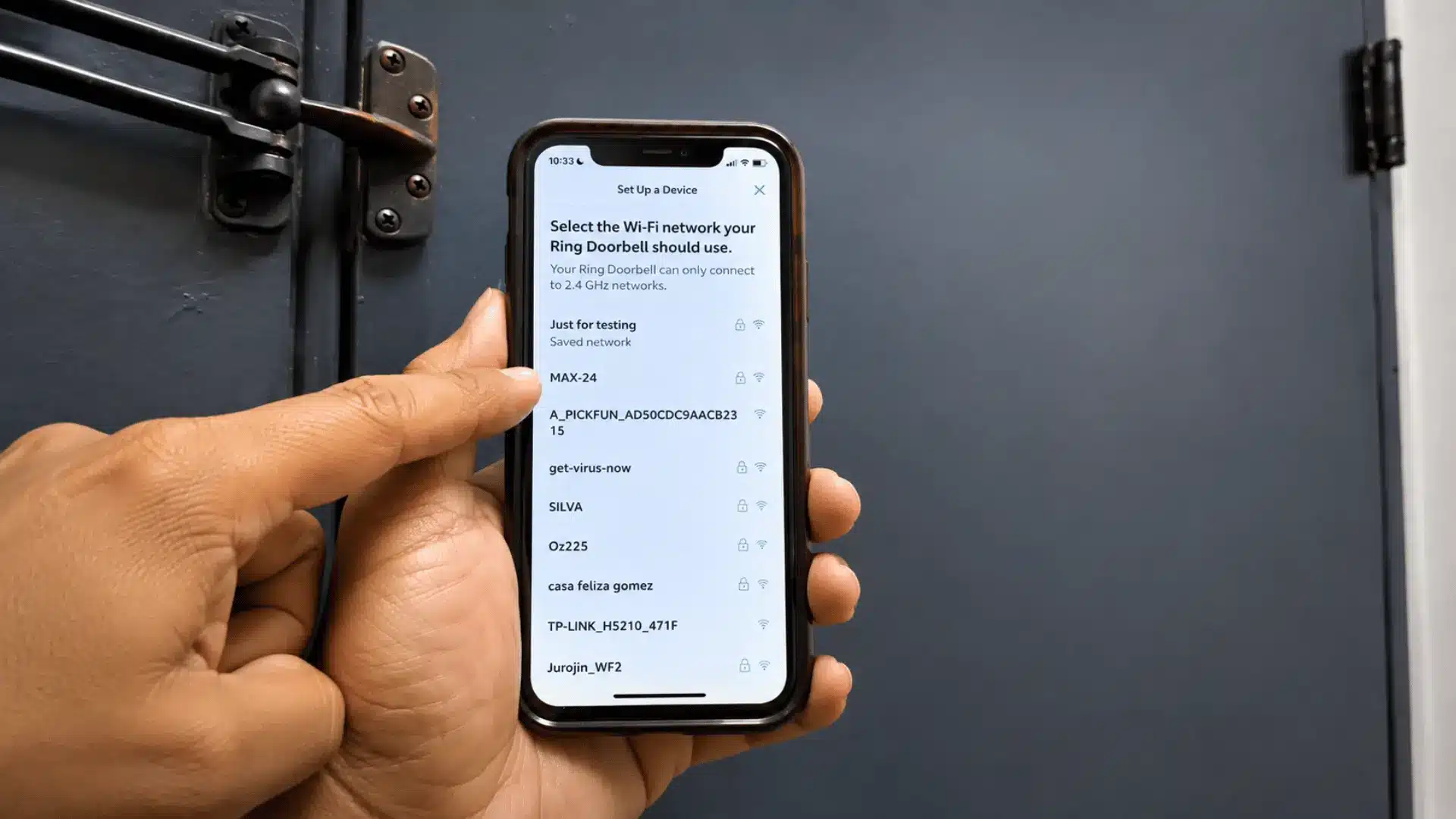
Return to the Ring app and select the correct WiFi network from the available list.
If the network doesn’t appear immediately, look for an option such as Show All Networks, or wait a few seconds for the list to refresh.
Enter the WiFi password carefully and continue.
Step 5: Finish Setup
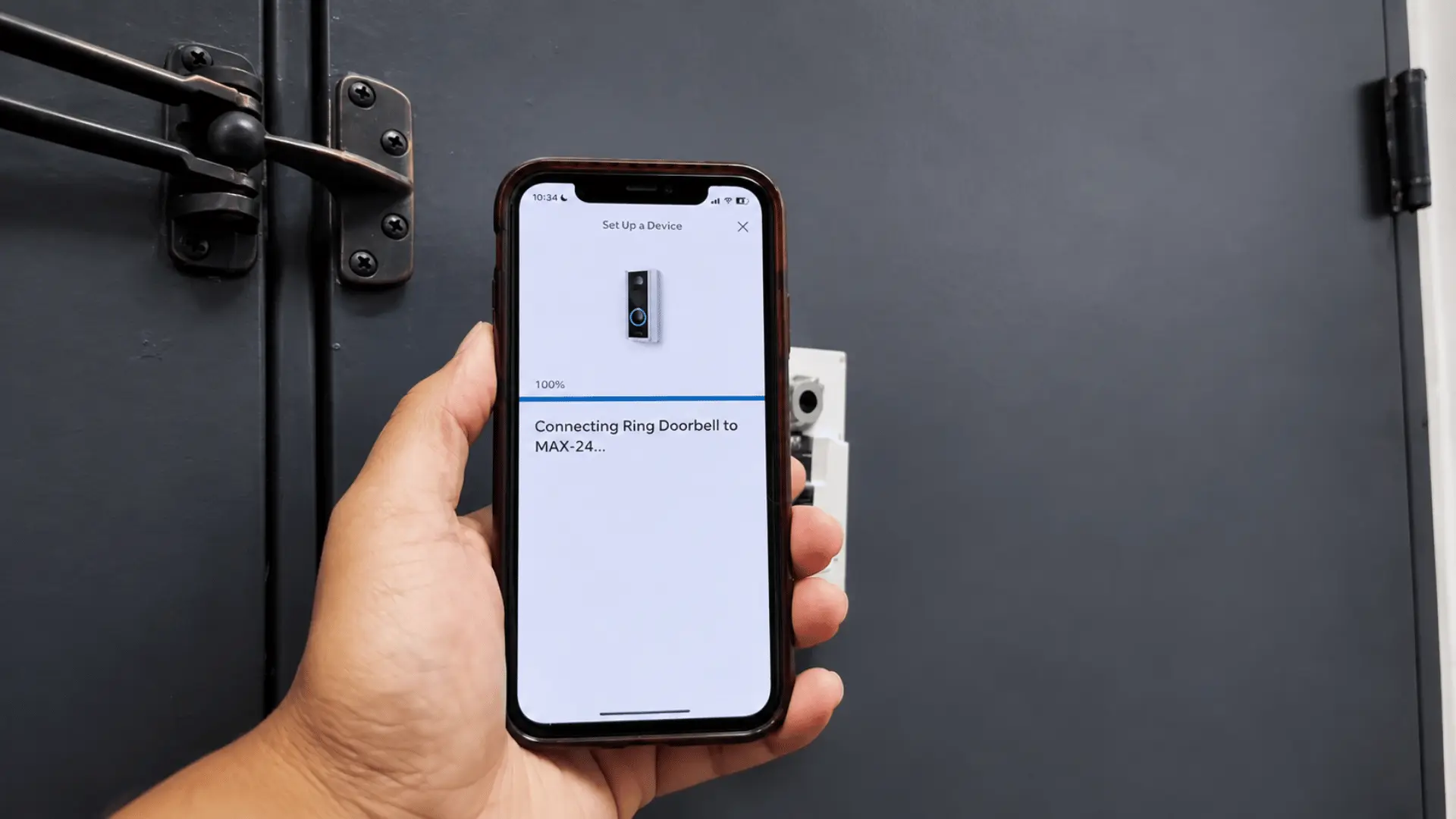
Keep the Ring app open while the doorbell completes the connection. Once setup finishes, check the device status inside the app. Open Live View to confirm video loads normally.
Press the doorbell button or walk through the motion zone to make sure notifications are also reaching the phone.
For a visual reference, this video can help show where the main Ring app settings and setup controls appear:
How to Change Ring Doorbell WiFi After Getting a New Router
A new router does not always mean the Ring Doorbell needs manual setup.
If the new router uses the exact same network name, password, and compatible security settings as the previous router, the doorbell may reconnect on its own.
Manual setup is usually needed when the new router has a different:
- WiFi name
- WiFi password
- security configuration
- network band arrangement
If the Ring Doorbell stays offline after the router change, open Device Health and start the reconnect process. This is usually the quickest way to connect Ring to new WiFi when the replacement router uses different credentials.
Using the same old network name and password on a replacement router can sometimes save time, especially when several smart devices use the same connection. However, this only helps when the new router supports settings compatible with those devices.
What Happens After Changing Your WiFi Password?
Changing only the router password can disconnect a Ring Doorbell even when the WiFi name stays the same.
The doorbell still has the old password stored, so it cannot authenticate with the router.
There is no separate password field to edit before setup. Instead, reconnect the Ring Doorbell to the existing network and enter the new password when the Ring app requests it.
This situation is easy to identify when other devices reconnect after receiving the new password, but the Ring Doorbell remains offline.
Before trying other fixes, double-check the password for:
- uppercase and lowercase letters
- spaces
- numbers
- special characters
A single typing mistake can stop the connection.
Can You Change Ring Doorbell WiFi Without Removing It?
Many Ring Doorbells can stay mounted while the WiFi network is changed.
The main issue is whether you can reach the setup button. Some models place it on the side or front, while others hide it behind the faceplate.
If the button is behind the faceplate, you may need to remove the cover. The complete doorbell usually does not need to be taken off the wall just for a network update.
Also avoid deleting the Ring Doorbell from the Ring account unless another problem specifically requires that action. Changing WiFi and removing a registered device are different processes.
Keeping the device registered saves its existing account association and avoids unnecessary setup work.
Can You Change Ring Doorbell WiFi Without the App?
The Ring app is normally required to provide the Ring Doorbell with the new network name and password.
Pressing the physical setup button only prepares the device for configuration. It does not provide the new WiFi credentials by itself.
If the phone originally used for Ring setup is unavailable, you can use another compatible smartphone.
Install the Ring app, sign in to an account with access to the doorbell, and open the device settings. The network change can then continue from that phone.
You may still need physical access to the Ring Doorbell if the device needs to enter setup mode.
Ring Doorbell WiFi Differences by Model
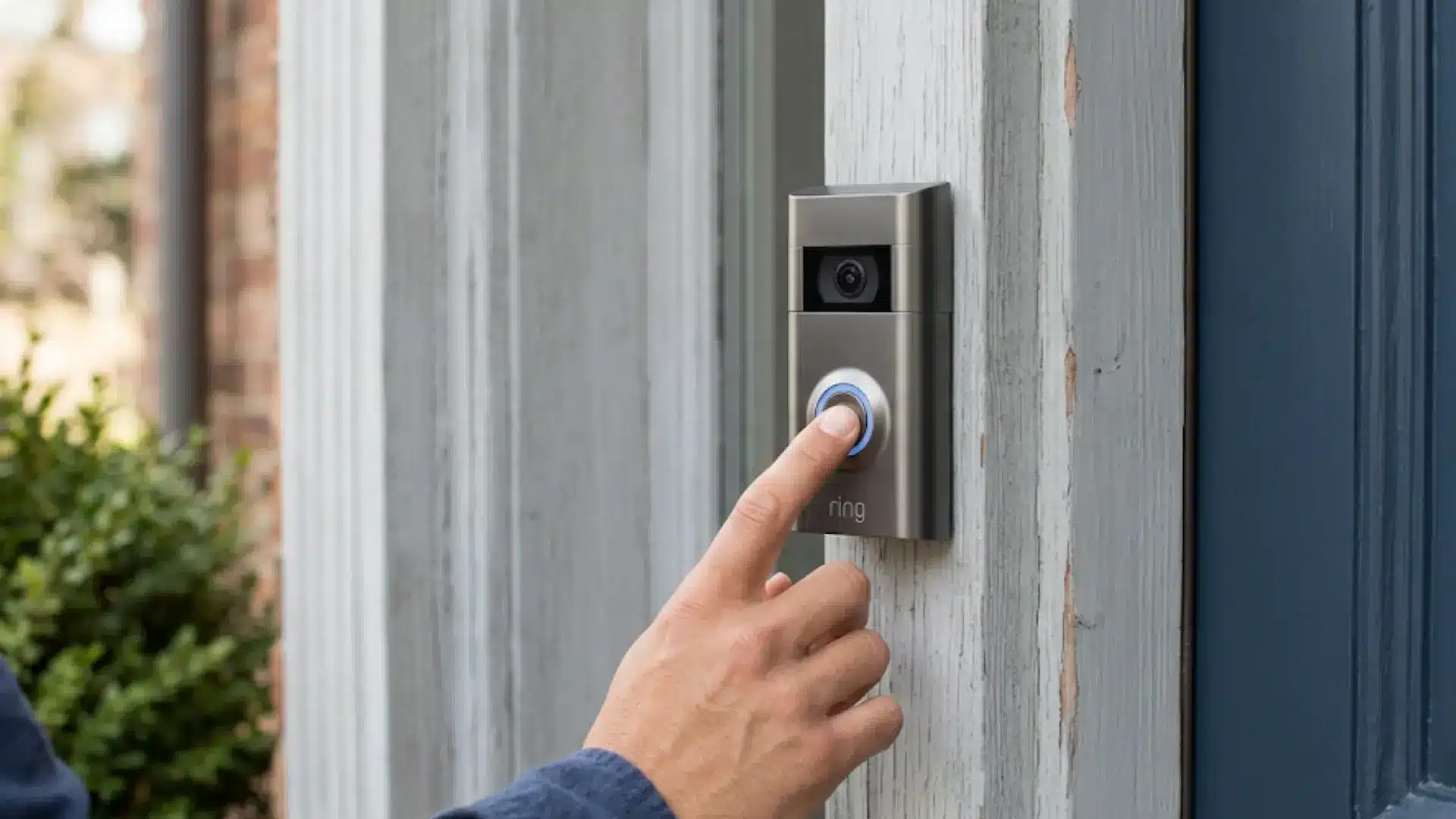
The Ring app process stays fairly similar across the product range, but power sources, setup-button locations, and supported WiFi bands can differ.
Ring Video Doorbell 2
Ring Video Doorbell 2 uses a removable rechargeable battery.
Before changing WiFi, check that the battery has enough charge to complete setup. Low battery power can cause the device to stop responding during connection attempts.
The setup button must also be accessible when the app requests setup mode.
Ring Doorbell Wired
Ring Doorbell Wired uses continuous power instead of a removable battery.
Battery charging is not part of its network troubleshooting. If the device has no lights or does not respond during setup, checking its power supply is more useful.
WiFi changes still take place through the Ring app.
Ring Doorbell Pro and Pro 2
Ring Doorbell Pro models also rely on wired power, but their network features can vary by generation.
Setup-button placement may also differ from battery-powered models.
Check the specifications for the exact device before assuming that it supports every 2.4 GHz or 5 GHz network available from the router.
Why Won’t My Ring Doorbell Connect to the New WiFi?
If the Ring Doorbell doesn’t connect after you enter the new network details, check the likely cause before restarting the entire setup process.
- Incorrect Password: Type the WiFi password again slowly and check every character.
- Weak WiFi Signal: Check whether the router provides a reliable signal near the front door.
- Unsupported WiFi Band: Confirm that the selected 2.4 GHz or 5 GHz network works with the Ring model.
- Low Battery: Fully charge battery-powered Ring Doorbells before another attempt.
- Power Issue: Check the power source when a wired model has no lights or does not respond.
- Router Restrictions: Review settings such as device filtering, hidden networks, or unusual security controls.
- App Problem: Close and reopen the Ring app or update it if settings are missing or unresponsive.
- Router Problem: Restart the router if other devices are also having trouble connecting.
Start with the password and WiFi signal. Both are easy to check and do not require changing router settings.
No Option to Change WiFi on Ring Doorbell
The Ring app may use different wording depending on the device status and app version.
Inside Device Health, look for:
- Change Wi-Fi Network
- Change Network
- Reconnect to Wi-Fi
An offline device may show a reconnect prompt instead of the normal network option.
If none of these choices appear, first confirm that the correct Ring Doorbell is selected. Then check that the signed-in account has permission to manage the device.
Updating the Ring app may also help if online instructions don’t match the current interface.
Shared users can have different permissions than the primary device owner, so check account access before resetting anything.
Should a Ring Doorbell Use 2.4 GHz or 5 GHz WiFi?
The correct network band depends on the Ring Doorbell model and the signal available near the door.
2.4 GHz WiFi generally offers better range and can travel through walls more effectively. That makes it useful when the router is several rooms away from an exterior door.
5 GHz WiFi can offer higher speeds, but its practical range is usually shorter.
For a video doorbell, a stable connection matters more than choosing the fastest network available.
If both bands are supported and the 5 GHz signal is weak at the entrance, a stronger 2.4 GHz connection may perform more reliably.
Check the specifications for the exact Ring model before changing router band settings.
How to Improve Ring Doorbell WiFi After Reconnecting
A Ring Doorbell can reconnect successfully but still perform poorly if the signal near the entrance is weak.
Watch for symptoms such as:
- Live View loading slowly
- video freezing
- Delayed motion alerts
- Frequent offline notifications
- Missed doorbell alerts
Router placement has a large effect on outdoor smart devices because walls, doors, brick, metal, and distance can weaken the signal.
If possible, keep the router away from enclosed cabinets and large obstacles. Moving it to a more central location may improve coverage.
For larger homes, a suitable mesh WiFi system or compatible network extender may help reach areas where the main router signal is weak.
Check Device Health after making network changes to see whether connection quality improves.
Final Thoughts
Knowing how to change WiFi on a Ring Doorbell comes in handy after a new router, an updated password, or an unexpected network outage. The main task happens through Device Health in the Ring app, with the physical setup button used only when the device needs to accept new credentials.
I usually confirm the result with Live View and a doorbell or motion alert, rather than assuming a successful setup screen means everything is working correctly.
If the device still struggles to stay online, checking signal quality, power, router settings, and model compatibility can help reconnect Ring Doorbell to WiFi without repeating every setup step.
Frequently Asked Questions
Why Is “change Wi-Fi Network” Missing from My Ring App?
This usually means your doorbell already dropped offline. The app can’t offer that option for a device it can’t reach. Instead, select Reconnect to Wi-Fi, or manually press the setup button to start the connection directly.
Can I change my Ring doorbell’s Wi-Fi without being near it?
No. Setup mode has to happen in person, even through the app. You’ll need to press the setup button and wait for the light to spin before the app can continue.
Why does setup keep failing even with the correct password?
The most common cause is a router that combines 2.4GHz and 5GHz under one name. MAC filtering or AP isolation can also block the connection even with the right password.
How do I know the Wi-Fi change actually worked?
Check that your doorbell shows online in the app. Then open Live View and wait for a motion alert. If both work without delay, you’re set.