Alexa suddenly going quiet can be frustrating, especially when you rely on it for simple daily tasks.
If you’re asking, “why is my Alexa not responding,” the cause may be as simple as a muted microphone, weak Wi-Fi, low volume, or a stuck process.
I know it can be tempting to reset everything right away, but that can create extra work, especially once you’ve spent real time setting up smart devices the way you want them. Instead, you can start with a few quick checks that point to the real problem.
I’ll show you how to read the light ring, test the microphone and connection, restart the device, reconnect Wi-Fi, and decide when a factory reset or support call actually makes sense.
What Alexa’s Light Ring Is Telling You Right Now
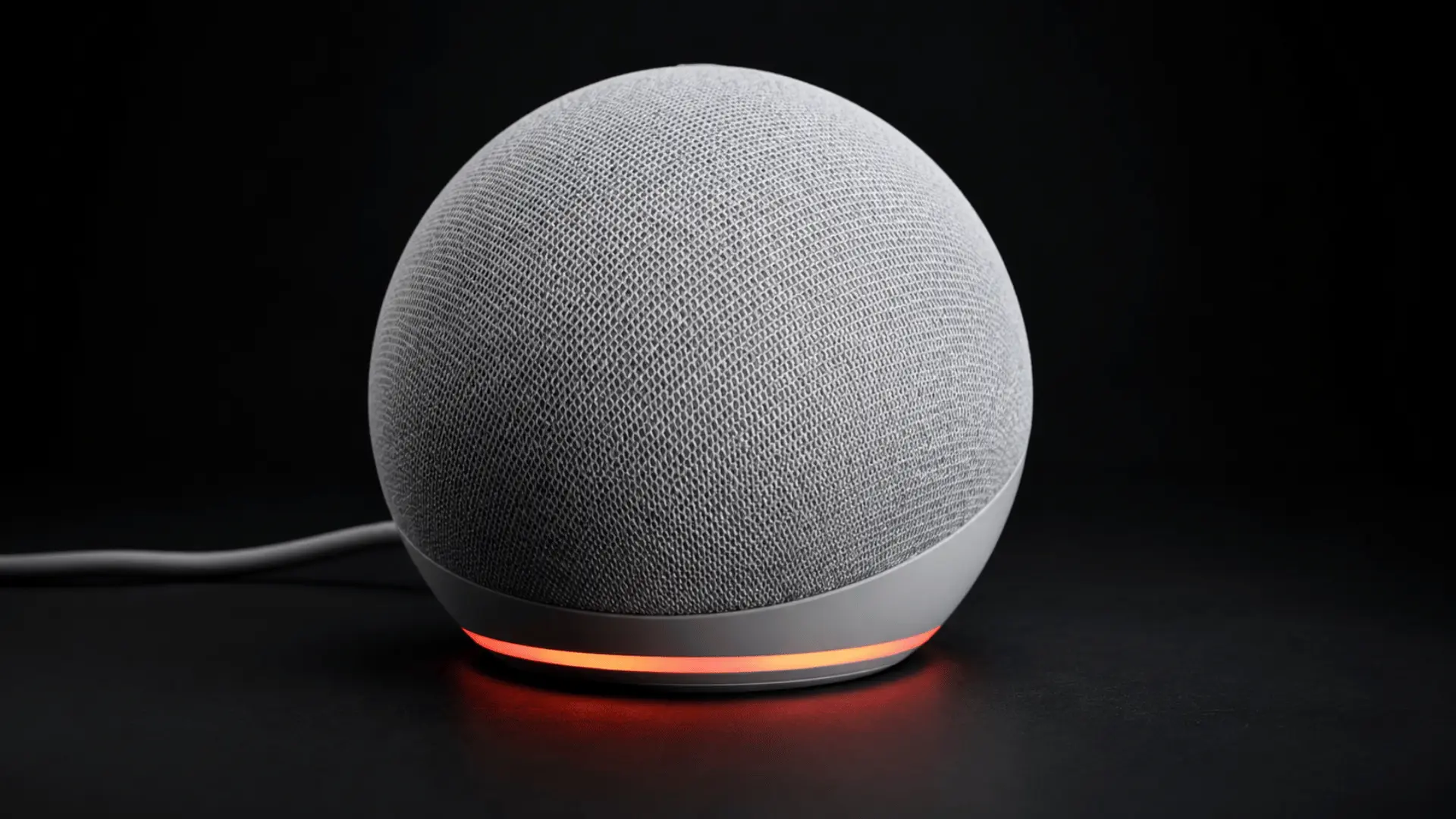
The light ring is one of the quickest ways to understand what may be happening with your Echo device. A solid red light means the microphone is muted, so Alexa cannot hear your voice commands.
A spinning blue light that continues without a response may mean Alexa is stuck while processing a request.
An orange light usually indicates setup mode, which may appear after a reset or connection problem, similar to what you’d see when setting up your automation for the first time.
If the Echo shows no light at all, check its power cable, adapter, and outlet before changing software settings.
Checking the light first can help narrow down the problem before moving through longer troubleshooting steps.
These indicators are simple but very useful for quickly diagnosing whether the issue is related to sound, connectivity, or power before trying advanced fixes at home.
Why Is My Alexa Not Responding: The Reasons
If you’re wondering, “my Alexa is not working,” there are several reasons your device may go quiet. Here’s a full breakdown of what’s actually happening in each case and how you can identify the problem.
1. Microphone Is Muted
A solid red light on an Echo device indicates that the microphone is turned off, which prevents Alexa from hearing any voice commands. This is often the simplest issue to fix.
Press the microphone button once to re-enable it, wait for the red light to disappear, and then try giving Alexa a new command to confirm it is working again.
2. Wi-Fi Connection Dropped
Alexa requires a stable internet connection to respond to most requests, so even a brief Wi-Fi drop can make it seem unresponsive. Check the Alexa app to see if the device is offline.
You can also test your Wi-Fi using another connected device. If the network is down, restarting the router often restores connectivity and brings Alexa back online.
3. Alexa Missed the Wake Word
If Alexa isn’t responding, it may not be detecting the wake word because of background noise, distance, or interference from fans, TVs, or conversations. Move closer to the Echo device and speak clearly.
If Alexa responds after that, the issue is likely environmental. Adjusting placement or reducing noise can significantly improve wake word detection and responsiveness.
4. Alexa Is Temporarily Stuck
Sometimes Alexa processes a command but becomes temporarily stuck, causing no response or a continuous blue light. This is usually a minor software glitch.
The quickest fix is a restart. Unplug the Echo device, wait about 30 seconds, and plug it back in. Once it restarts fully, test a simple command to confirm the issue is resolved.
5. A Firmware Update Is Running
Your Echo device may occasionally install firmware updates in the background, which can temporarily affect responsiveness. During this time, Alexa may not respond properly or may delay commands.
It is best to leave the device connected to both power and Wi-Fi. After the update completes, normal functionality should return without manual troubleshooting.
6. Volume Is Too Low
Alexa may be responding correctly, but the volume could be too low to hear. This often makes it seem like the device is not working.
Press the volume-up button several times to increase the sound level. Then ask a simple question, such as the time or weather, to confirm whether Alexa is speaking normally again.
7. A Third-Party Skill Has a Problem
If Alexa works normally except when using a specific skill, the issue is likely with that third-party skill rather than the device itself. Some skills, especially the ones tied to creative automation routines, may freeze or fail to load properly.
Disable the skill in the Alexa app, then re-enable it. Then test the same command again to see whether the issue is resolved.
8. Power Supply Problems
Unstable or loose power connections can cause Alexa to restart unexpectedly, lose connectivity, or stop responding altogether.
Check that the power adapter and cable are securely connected to both the Echo device and the outlet. If possible, use the original power adapter provided with the device, as third-party chargers may not always deliver consistent power.
How to Confirm What’s Actually Wrong
Before performing a factory reset, spend a couple of minutes checking which part of the Echo is causing the problem.
Start by pressing the Action button. If the device reacts to the button but not your voice, check the microphone and wake word.
Next, open the Alexa app and check whether the Echo appears offline. An offline status points more strongly toward an internet or Wi-Fi issue.
Then move closer and say the wake word clearly. If Alexa works from a shorter distance, background noise or microphone range may be affecting voice detection.
These quick checks can help you choose the right troubleshooting step without changing settings that are already working.
How to fix Alexa: Step by Step
Once you know what’s causing the problem, fixing it usually takes a few minutes. Work through these steps in order until Alexa responds normally again.
Step 1: Check If Alexa Is Muted
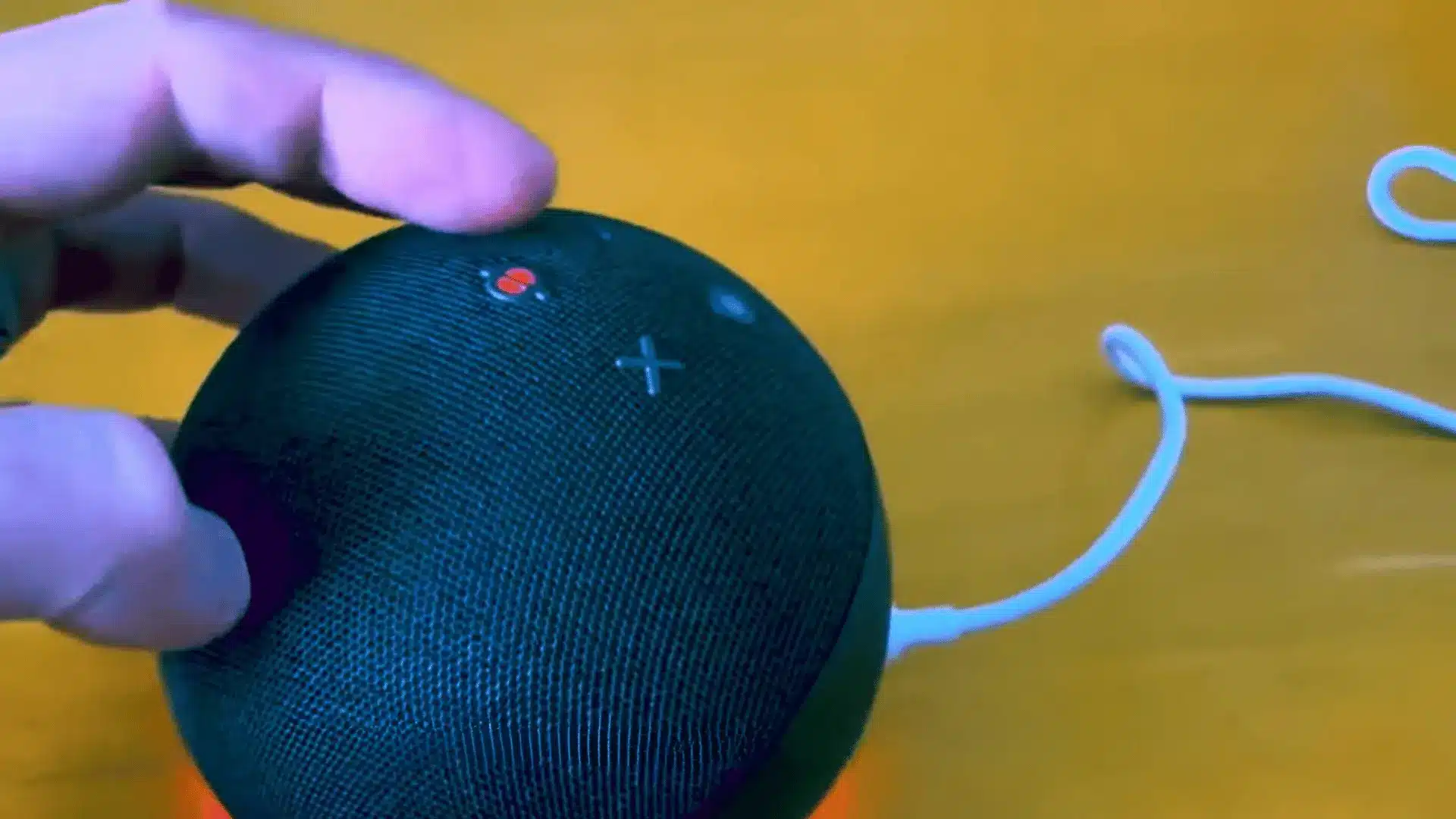
Start by checking the Echo device’s light ring. If you see a red light ring, the microphone is muted, which prevents Alexa from hearing your commands. Locate the microphone button on the device and press it once to turn the microphone back on.
Wait for the red light to disappear, then try giving Alexa a simple voice command. If the device responds normally, the issue was only caused by the mute setting.
Step 2: Restart Your Echo Device
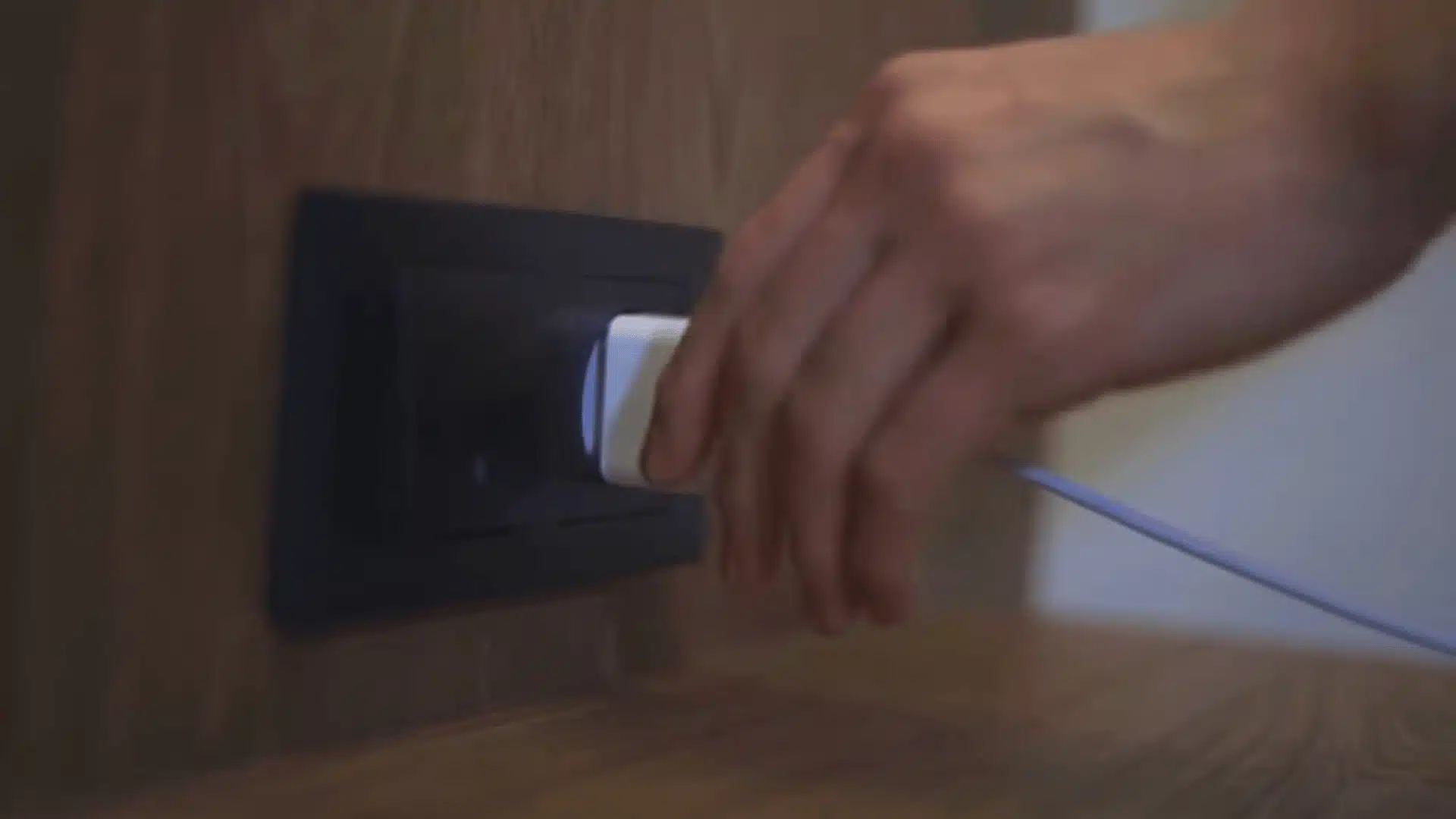
Unplug your Echo device directly from the power outlet and leave it disconnected for about 30 seconds. This allows the device’s internal system to fully reset and clear temporary glitches.
After waiting, plug the Echo back in and allow the light ring to complete its startup process. Once the device is ready, ask Alexa a question to check if it responds.
Step 3: Check Your Wi-Fi Connection
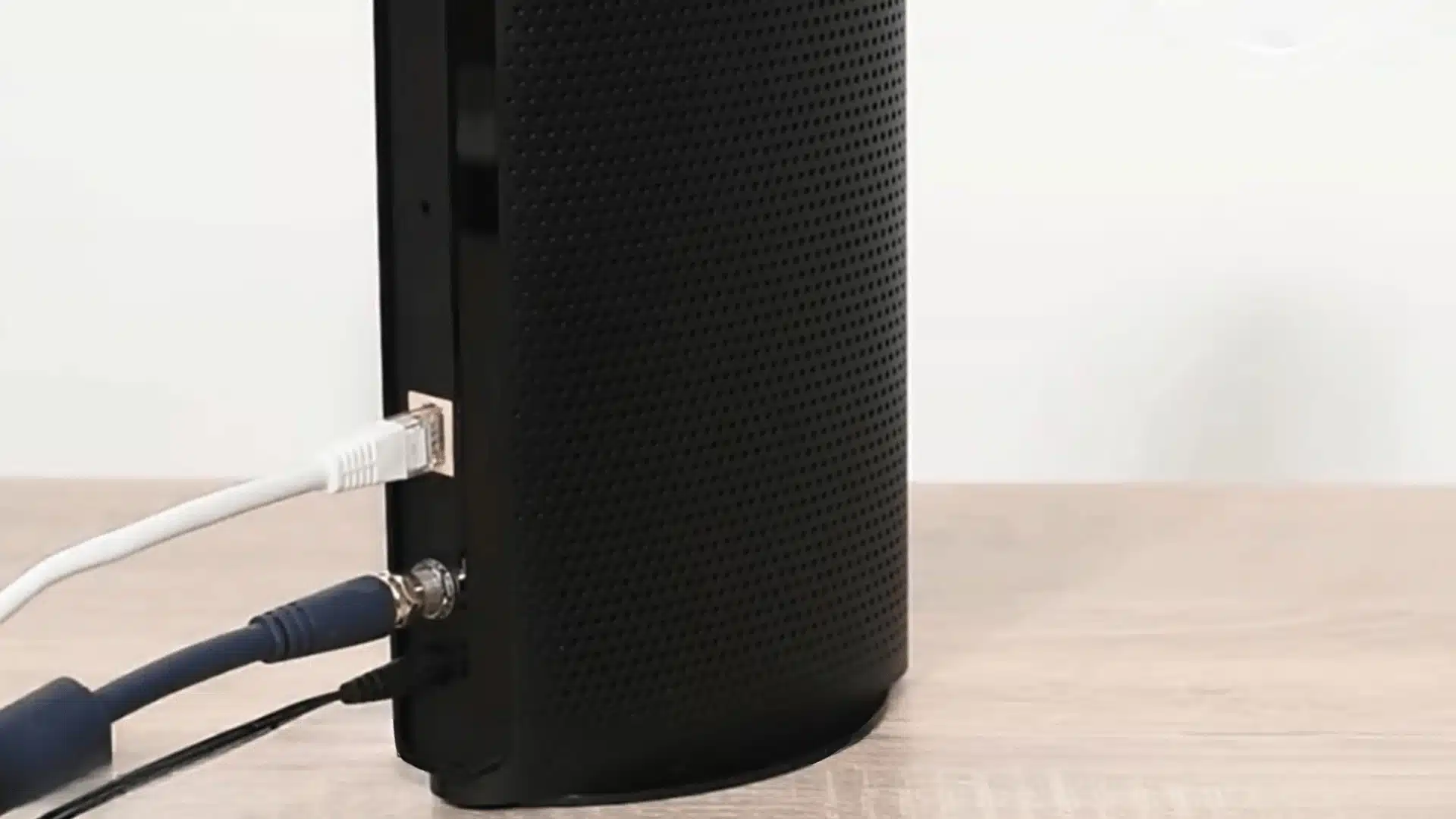
Open the Alexa app on your smartphone and go to Devices. Select your Echo device and check its connection status. If it shows as offline, your Echo is not connected to the internet.
Check whether other devices in your home can access the same Wi-Fi network. If multiple devices are offline, restart your router by unplugging it for 30 seconds, then reconnect it.
Step 4: Reconnect Alexa to Wi-Fi
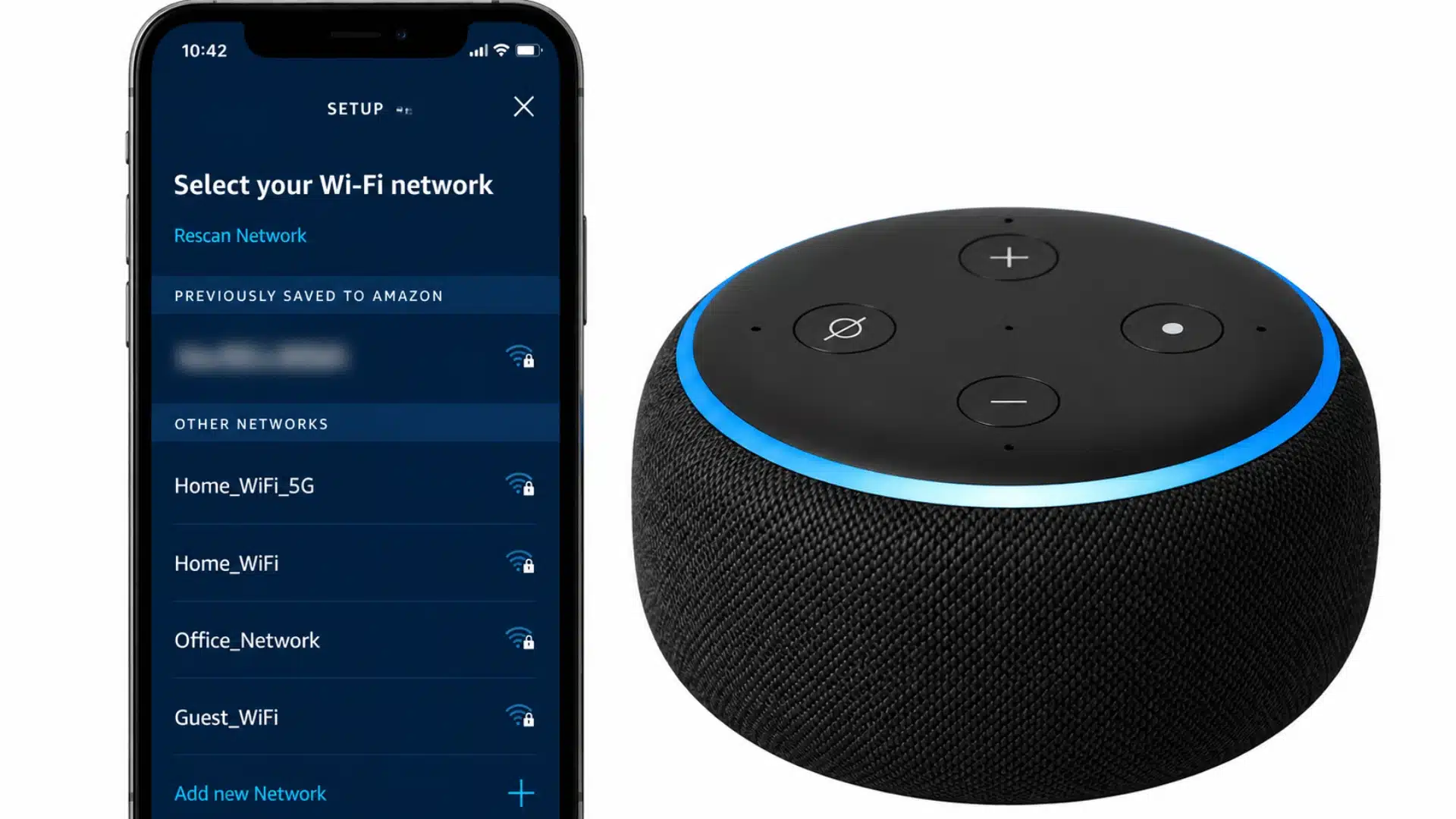
If your Wi-Fi works on other devices but Alexa remains offline, reconnect the Echo manually. Press and hold the Action button on your Echo until the light ring turns orange, which activates setup mode.
Open the Alexa app, go to your Echo device settings, select the Wi-Fi option, and choose Change Network. Enter the correct Wi-Fi password and complete the setup process until your Echo reconnects.
Step 5: Check Alexa’s Volume Settings
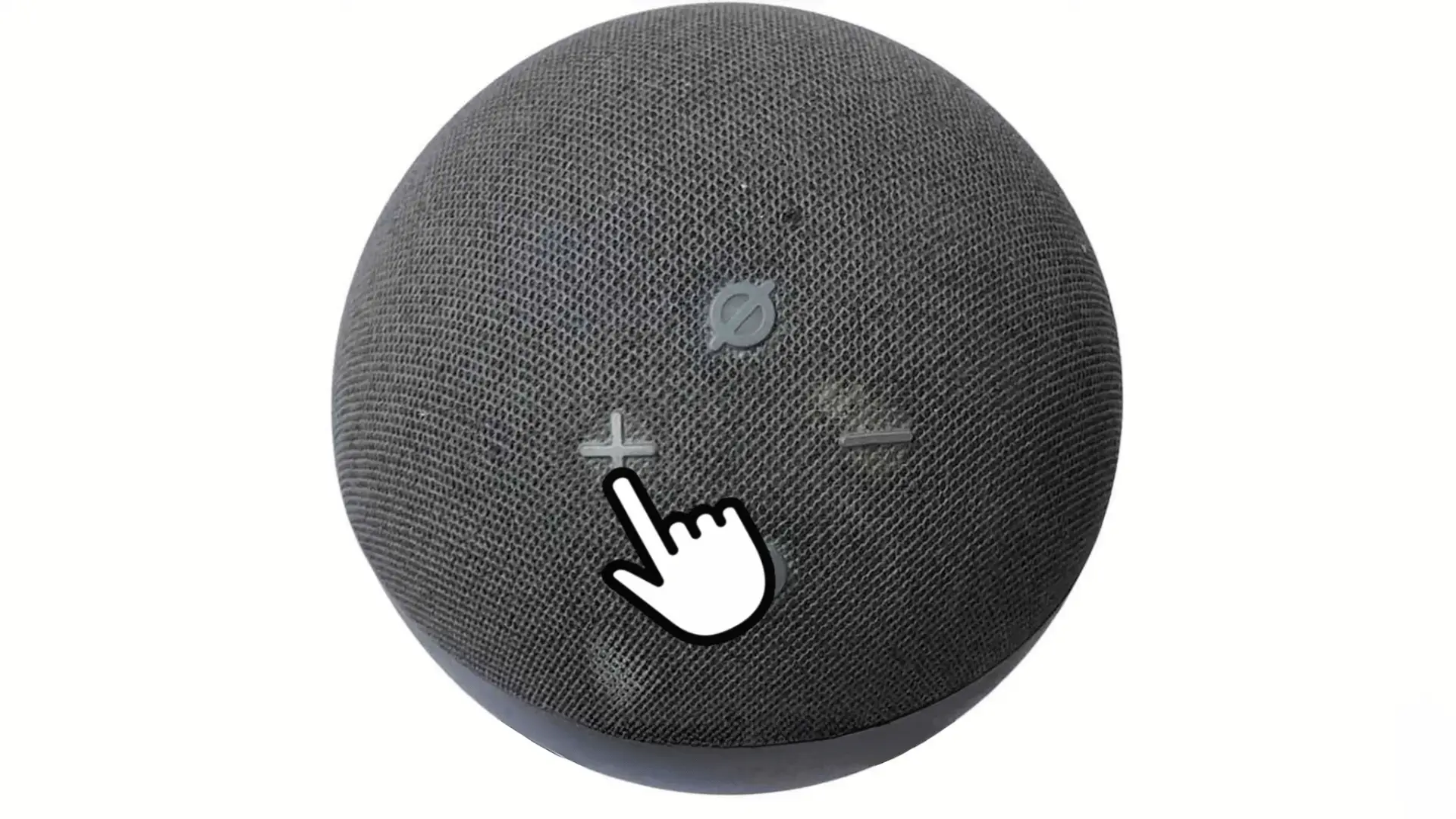
Sometimes Alexa responds correctly, but the sound is too low to hear. Press the volume-up button on your Echo device several times to increase the volume level.
After adjusting the volume, test the speaker by asking Alexa a basic question, such as checking the time. If you hear the response, the problem was caused by a low volume setting.
Step 6: Test Alexa with A Simple Command
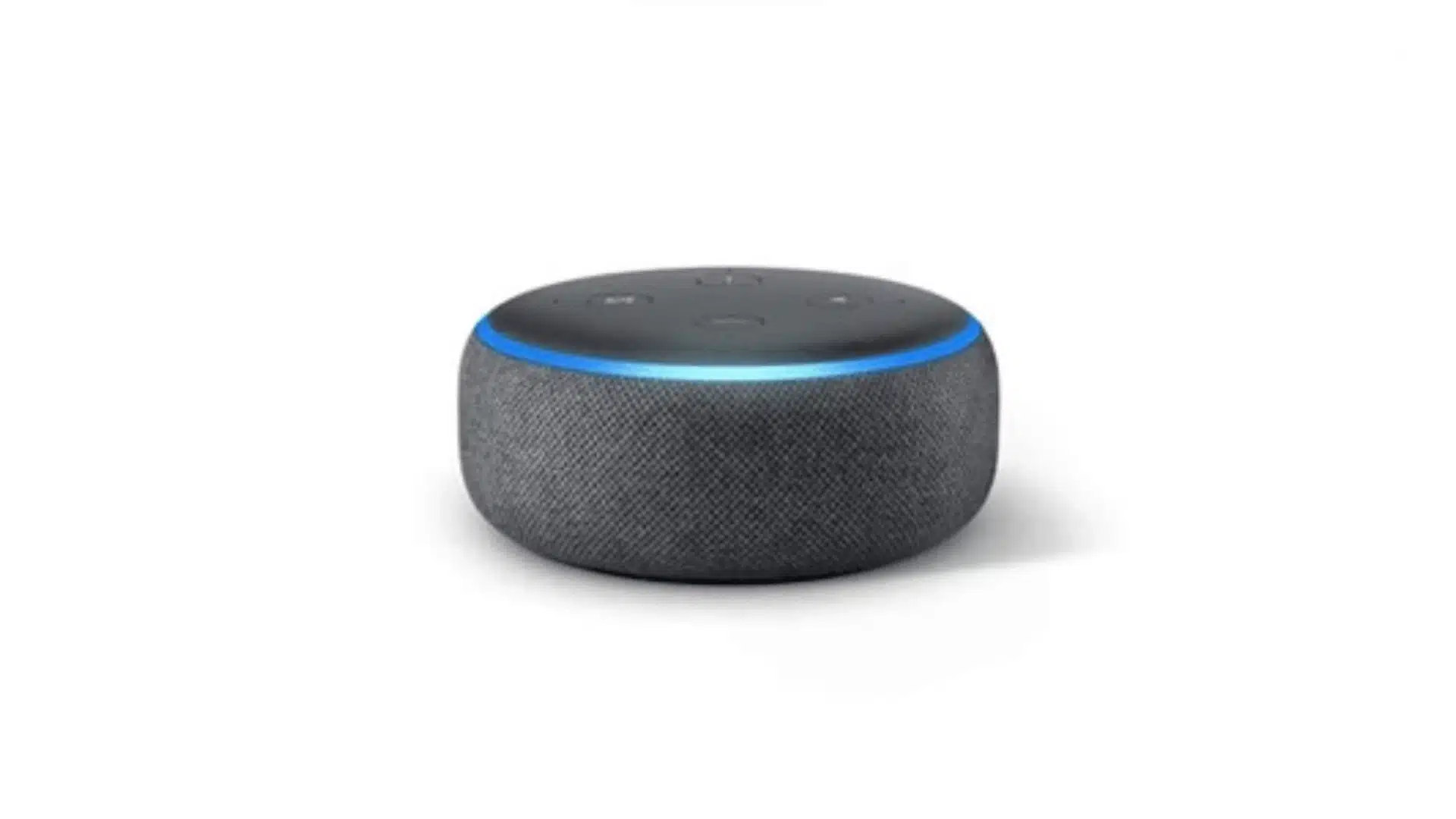
After completing the troubleshooting steps, test your Echo device with a few basic commands. Ask Alexa questions like the weather, time, or a general information request to confirm it is working properly.
If Alexa still does not respond, repeat the Wi-Fi and power restart steps carefully, making sure the device has a stable internet connection and the microphone is enabled.
For further information, go through this video:
When to Factory Reset Alexa
A factory reset should be your last option, not your first move. Try it only after a restart, Wi-Fi fix, and wake word check have all failed.
To reset most Echo models, hold the action button for 20 to 25 seconds. Release it once the light ring turns orange and setup mode begins.
Keep in mind this wipes every setting on the device. You’ll need to reconnect Wi-Fi, sign back into your account, and set preferences again from scratch.
I recommend this only after every other fix has come up empty. Jumping straight to a reset adds extra setup work for no benefit.
When to Contact Amazon Support or a Service Center
Sometimes the fix isn’t something you can do at home, and that’s fine. Knowing when to stop and get help saves you time and frustration.
Here are the situations where reaching out makes more sense than continuing to troubleshoot on your own.
- Every fix has already failed: you’ve tried a restart, a Wi-Fi reset, a wake word check, and a full factory reset with no change.
- The device shows physical damage: a cracked casing, water exposure, or visible internal damage means software fixes won’t help anymore.
- The device won’t power on at all: no light, no sound, and no response even on a different outlet points to a dead unit.
- The warranty is still active: replacement is usually faster than repair, so it’s worth checking coverage before buying anything new.
I’ve seen people push through weeks of troubleshooting on a device that just needed a warranty claim. It rarely saves time in the end.
You can start a support request through the Alexa app under Help, or by visiting Amazon’s device support page directly. Keep your order number ready.
Conclusion
Alexa problems are often easier to fix once you know what signs to check first. A red light can point to a muted microphone, while connection problems, low volume, power issues, or software glitches can also stop normal responses.
If you are still asking why is my Alexa not responding, I recommend checking the light ring, restarting the Echo, testing Wi-Fi, and confirming the volume before trying a factory reset. These steps help you avoid unnecessary setup and focus on the cause that actually fits your device.
If the Echo still doesn’t respond after these basic checks, contacting Amazon support may make sense. Try these fixes today and share which one worked for you.
Frequently Asked Questions
Why Did My Alexa Stop Working All of A Sudden?
A sudden stop is usually a dropped Wi-Fi connection or a stuck process, not a hardware failure. Check if the light ring is solid red or spinning blue without stopping. Unplugging the device for 30 seconds resolves most sudden, unexplained failures without needing a full reset.
Why Does Alexa Turn Blue but Not Respond?
A blue light usually means Alexa is processing a request. But if it spins continuously without responding, the device is stuck mid-process. This is a software hang, not a hardware issue. Unplugging it for 30 seconds and restarting it typically clears the stuck state.
Why Isn’t Alexa Recognizing My Wake Word?
This usually happens due to background noise, distance from the device, or an accidental wake word change. Check Devices, then Echo & Alexa, then Wake Word in the app to confirm the right word is selected. Then try speaking clearly from closer to the device.
How Do I Know if My Alexa Has a Hardware Problem, Not a Software One?
If you’ve restarted the device, fixed the Wi-Fi, checked the wake word, let the firmware update, and tried a factory reset with no improvement, it’s very likely hardware. At that point, contacting the manufacturer or checking your warranty is the next reasonable step.