Look at your iPhone home screen. Somewhere on there, probably buried in a folder labeled “Utilities” or “Extras,” is an app with a blue and pink overlapping icon. It is called Shortcuts. Most iPhone users open it once, get intimidated by the blank interface, and never touch it again.
That is a massive mistake.
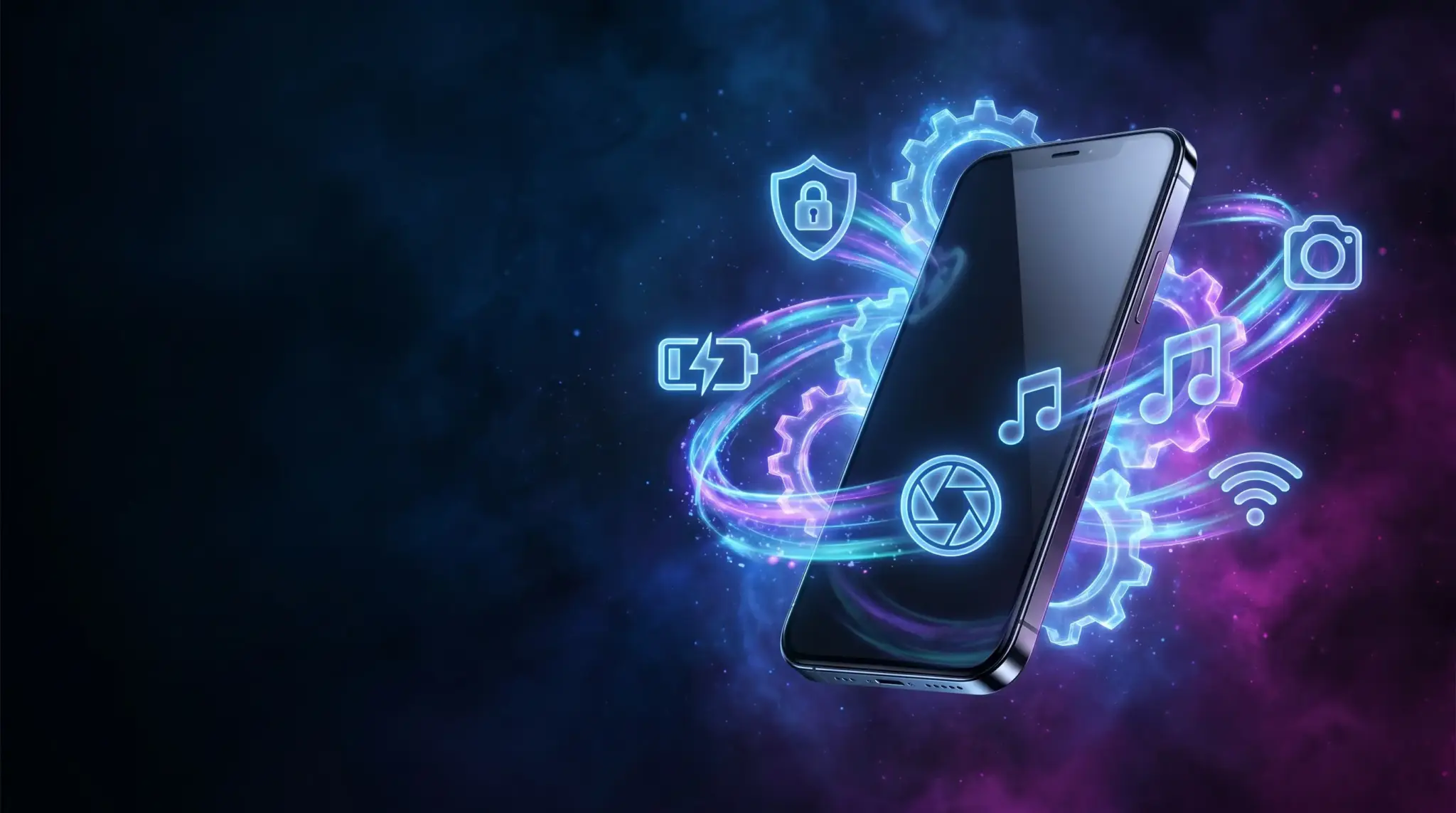
The Shortcuts app is essentially a secret superpower built directly into iOS. It allows you to program your phone to do complex, multi-step tasks automatically, either with a single tap or when a specific trigger occurs. We are not talking about basic things like setting an alarm. We are talking about custom automations that work quietly in the background to protect your privacy, manage your storage, and save you from repetitive tapping.
If you are ready to make your smartphone actually smart, here are seven brilliant, non-obvious automations you need to set up right now.
1. The “Fort Knox” Auto-VPN
Why you need it: You are sitting in a coffee shop, and you open your banking app or a cryptocurrency wallet. Are you absolutely sure you remembered to turn on your VPN first? Probably not. Public Wi-Fi is a playground for data snoops. You can force your iPhone to automatically engage your VPN the exact millisecond you open specific, sensitive apps.
How to set it up:
- Open the Shortcuts app and tap the Automation tab at the bottom.
- Tap the + icon in the top right corner.
- Scroll down and select App.
- Tap Choose and select your banking or crypto apps. Make sure Is Opened is checked.
- Crucial step: Select Run Immediately (this stops your phone from asking permission every time). Tap Next.
- Tap New Blank Automation, then Add Action.
- Search for Set VPN, select it, and make sure it says “Connect to [Your VPN]”. Hit Done.
Now, the moment you tap your banking app, your VPN shield goes up automatically.
2. The Speaking Battery Announcer
Why you need it: Sometimes you plug your phone into a loose outlet or a finicky wireless charger, walk away, and come back an hour later only to realize it never actually charged. You can program your iPhone to physically speak to you and confirm its battery level the moment power connects.
How to set it up:
- Go to Automation > + > Charger.
- Select Is Connected and Run Immediately. Tap Next.
- Start a New Blank Automation and tap Add Action.
- Search for Get Battery Level and add it.
- Search for another action called Speak Text and add it below. It will automatically link to the battery level.
- Tap Done. Next time you plug it in, Siri will say out loud, “68” (or whatever your percentage is), confirming the power is flowing.
3. The Instant Photo Trash Can

Why you need it: We all do it. We take seven nearly identical photos of our cat, or a bunch of screenshots of a recipe, intending to delete the bad ones later. We never do. This clutters your gallery and destroys your device’s memory. If you are constantly looking for ways to free up storage on iphone, this shortcut is a lifesaver. It finds your most recent photos and immediately offers to trash them with one tap.
How to set it up:
- This time, stay on the Shortcuts tab (not Automation) and tap + to create a new manual shortcut.
- Tap Add Action and search for Get Latest Photos.
- By default, it says “1 photo.” Tap the number and change it to 5 or 10.
- Add a second action: Delete Photos. It will automatically link to the photos fetched in the first step.
- Name the shortcut “Clean Up” and add it to your Home Screen. Now, whenever you finish a mini-photoshoot, just tap the icon. It grabs the last 10 photos you took and asks which ones you want to delete instantly.
4. The Real Wi-Fi and Bluetooth Kill Switch
Why you need it: When you swipe down from the top right of your screen to open the Control Center and tap the Wi-Fi or Bluetooth icons, you aren’t actually turning them off. Apple only disconnects you from current networks until tomorrow morning. The antennas stay on, quietly draining your battery by scanning for devices.
How to set it up:
- Go to the Shortcuts tab and tap +.
- Tap Add Action and search for Set Wi-Fi. Toggle it to Off.
- Search for Set Bluetooth and add it below. Toggle it to Off.
- Name this shortcut “Kill Connections” and add the widget to your Home Screen. One tap, and the antennas are truly dead, saving you massive battery life on long trips.
5. The “Do Not Disturb” Gym/Reading Mode
Why you need it: There is nothing worse than being in the middle of a heavy set at the gym, or deeply engrossed in a Kindle book on your screen, only to have a spam email or a text message group chat blow up your phone. You can tell your iPhone to shut up automatically when you are using specific apps.
How to set it up:
- Go to Automation > + > App.
- Choose your workout app, Kindle, or Apple Books. Select Is Opened and Run Immediately. Tap Next.
- Add the action Set Focus.
- Set it to turn Do Not Disturb to On.
- Bonus: Create a second automation for when the app Is Closed that turns Do Not Disturb Off.
6. The Aggressive Battery Saver
Why you need it: Apple prompts you to turn on Low Power Mode when you hit 20%. By then, it is often too late. If you know you have a long day ahead, you can force your phone to enter Low Power Mode much earlier, without it ever asking you.
How to set it up:
- Go to Automation > + > Battery Level.
- Use the slider to choose a percentage, like 40% or 50%.
- Select Falls Below X% and Run Immediately. Tap Next.
- Add the action Set Low Power Mode and ensure it is toggled to On. Now your phone will quietly go into survival mode long before you are in danger of a dead battery.
7. The Instant Song Catcher
Why you need it: You hear an amazing song in a store or a bar. By the time you unlock your phone, find the Shazam app, and wait for it to load, the song is over. This shortcut identifies the song and instantly drops it into your Spotify or Apple Music playlist in about two seconds.
How to set it up:
- Go to the Shortcuts tab and tap +.
- Add the action Recognize Music.
- Add a second action: Add to Playlist (or “Save Track” if using Spotify).
- Select your preferred playlist, like “Discovered Tracks.”
- Put this shortcut as a widget on your Lock Screen. Now, when you hear a song, tap the Lock Screen widget. Your phone will listen, identify the track, and save it for you to listen to later, all while the phone is practically still in your pocket.
The Bottom Line
Your iPhone is capable of so much more than just scrolling through social media feeds. The Shortcuts app might look like a tool meant only for software developers, but it is actually the key to a frictionless digital life. Take 20 minutes this weekend to set up these automations. Once you realize you never have to manually turn off Wi-Fi, toggle your VPN, or manually hunt down bad photos again, you will wonder how you ever lived without them.